Gantt Context Menu
Available in: All plans
Last updated: 06-Mar-2026
Overview
Right-clicking a Gantt bar or the chart background opens a context menu with quick actions. The menu adapts based on what you click — a task bar, a milestone, a summary bar, empty space, or a dependency line.
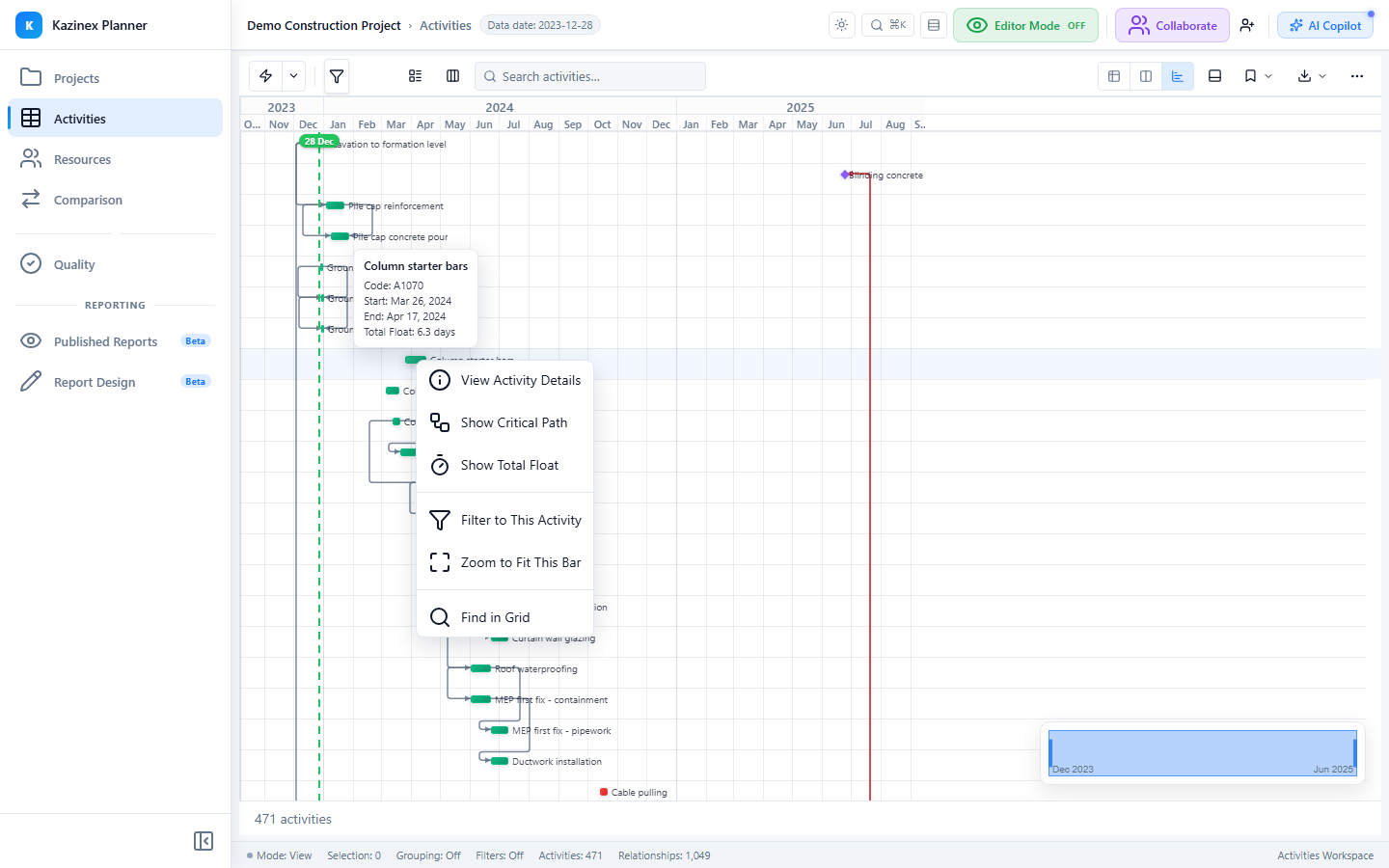
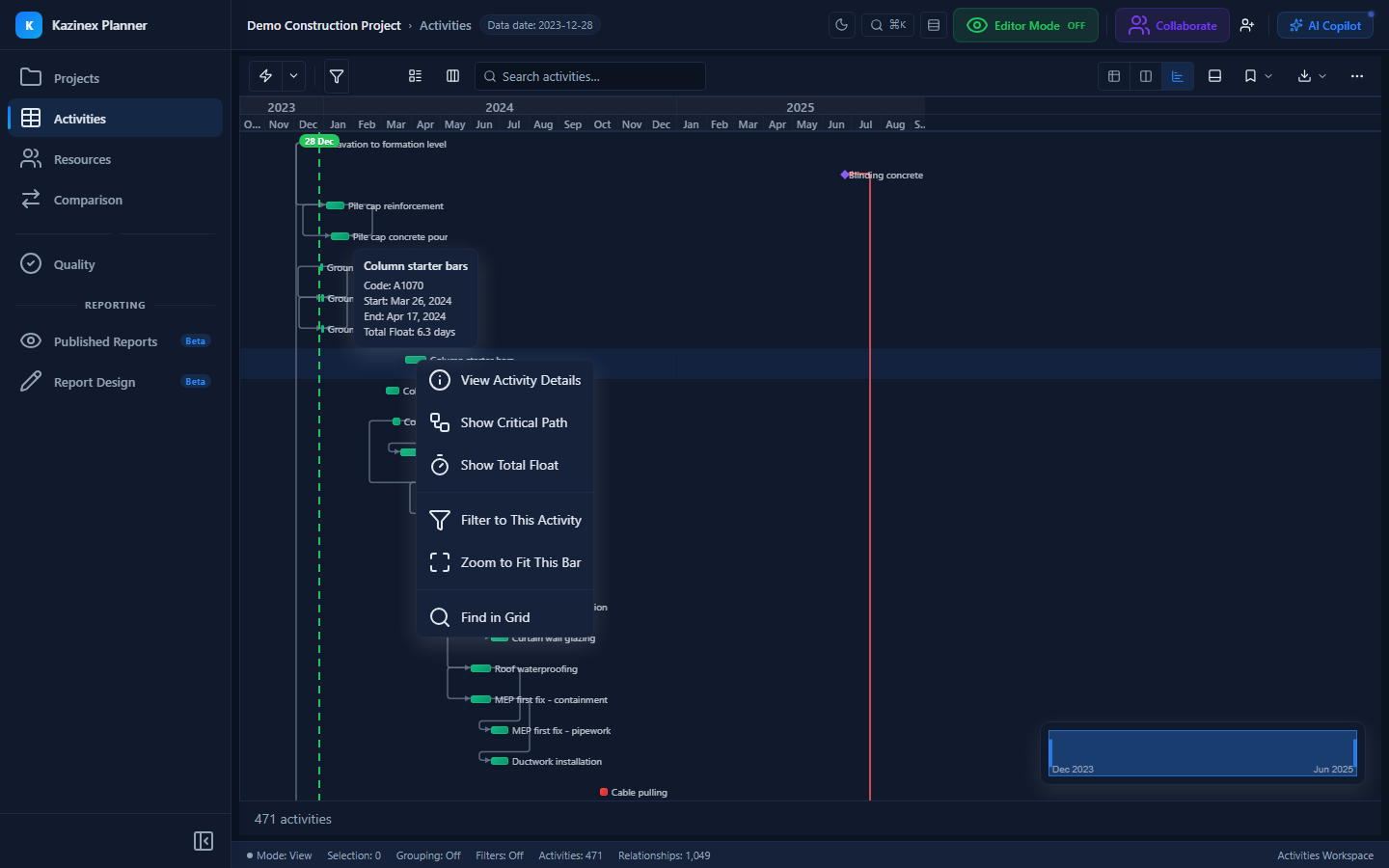
Bar Context Menu
Right-click any activity bar to see these options:
| Action | Shortcut | Description |
|---|---|---|
| Scroll to Activity | — | Centres the grid on this activity's row |
| Activity Details | Enter | Opens the Activity Details side panel for this activity |
| Edit Start Date | — | Opens the date picker pre-filled with the current early start |
| Edit Finish Date | — | Opens the date picker pre-filled with the current early finish |
| Edit Duration | — | Opens the duration editor for original or remaining duration |
| Add Relationship | — | Starts interactive relationship drawing from this activity |
| Set Constraint | — | Opens the constraint picker (Must Start On, SNET, FNLT, etc.) |
| Mark as Critical | — | Toggles a manual critical-path override flag |
| Copy Activity ID | Ctrl+C | Copies the activity ID to the clipboard |
| Delete Activity | Del | Removes the activity (with confirmation) |
Milestone-Specific Options
When you right-click a milestone diamond, the menu adds:
| Action | Description |
|---|---|
| Toggle Start/Finish | Switch between start milestone and finish milestone type |
| Edit Milestone Date | Opens a single date picker for the milestone date |
Summary Bar Options
Right-clicking a WBS summary bar shows:
| Action | Description |
|---|---|
| Expand All Children | Expands every nested WBS level beneath this node |
| Collapse All Children | Collapses all child rows under this summary |
| Select All Activities | Selects every activity within this WBS scope |
Background Context Menu
Right-click an empty area of the Gantt chart (not on a bar) to see:
| Action | Description |
|---|---|
| Zoom to Fit | Automatically scales the time axis to fit all visible activities |
| Zoom to Selection | Zooms to the date range of the currently selected activities |
| Zoom to Data Date | Centres the view on the schedule's data date |
| Go to Date | Opens a date picker to jump the Gantt to any date |
| Show/Hide Data Date Line | Toggles the data date marker line |
| Show/Hide Baseline Bars | Toggles primary baseline bar visibility |
| Gantt Settings | Opens the full Gantt Settings panel |
Dependency Line Context Menu
Right-click a relationship line between two bars:
| Action | Description |
|---|---|
| Edit Relationship | Opens the relationship editor with type and lag fields |
| Delete Relationship | Removes the predecessor/successor link (with confirmation) |
| Show Predecessor | Scrolls to and highlights the predecessor activity |
| Show Successor | Scrolls to and highlights the successor activity |
Keyboard Alternative
You can also trigger the context menu from the keyboard:
- Select an activity row in the grid.
- Press Shift+F10 (or the Menu key) to open the context menu at the selected bar's position.
Tips
Use Scroll to Activity from the Gantt context menu when you have found an activity in the grid and want to see its bar position on the timeline.
Select multiple activities in the grid first, then right-click any selected bar. Bulk-applicable actions (Delete, Set Constraint) will apply to the entire selection.
Related Documentation
- Gantt Overview — Full feature tour of the Gantt chart
- Drag Interactions — Move and resize bars by dragging
- Bar Types & Styles — Bar rendering and customisation
- Dependency Lines — Relationship line rendering