Resource Filters
Available in: Pro · Enterprise
Last updated: 05-Mar-2026
Overview
The Resource Filters panel lets you narrow the Resources tab to show only the resources you care about. Filters apply simultaneously to the Resource Grid, Time-Phased Spreadsheet, Hierarchy Browser, and Histogram — all four quadrants update in real time.
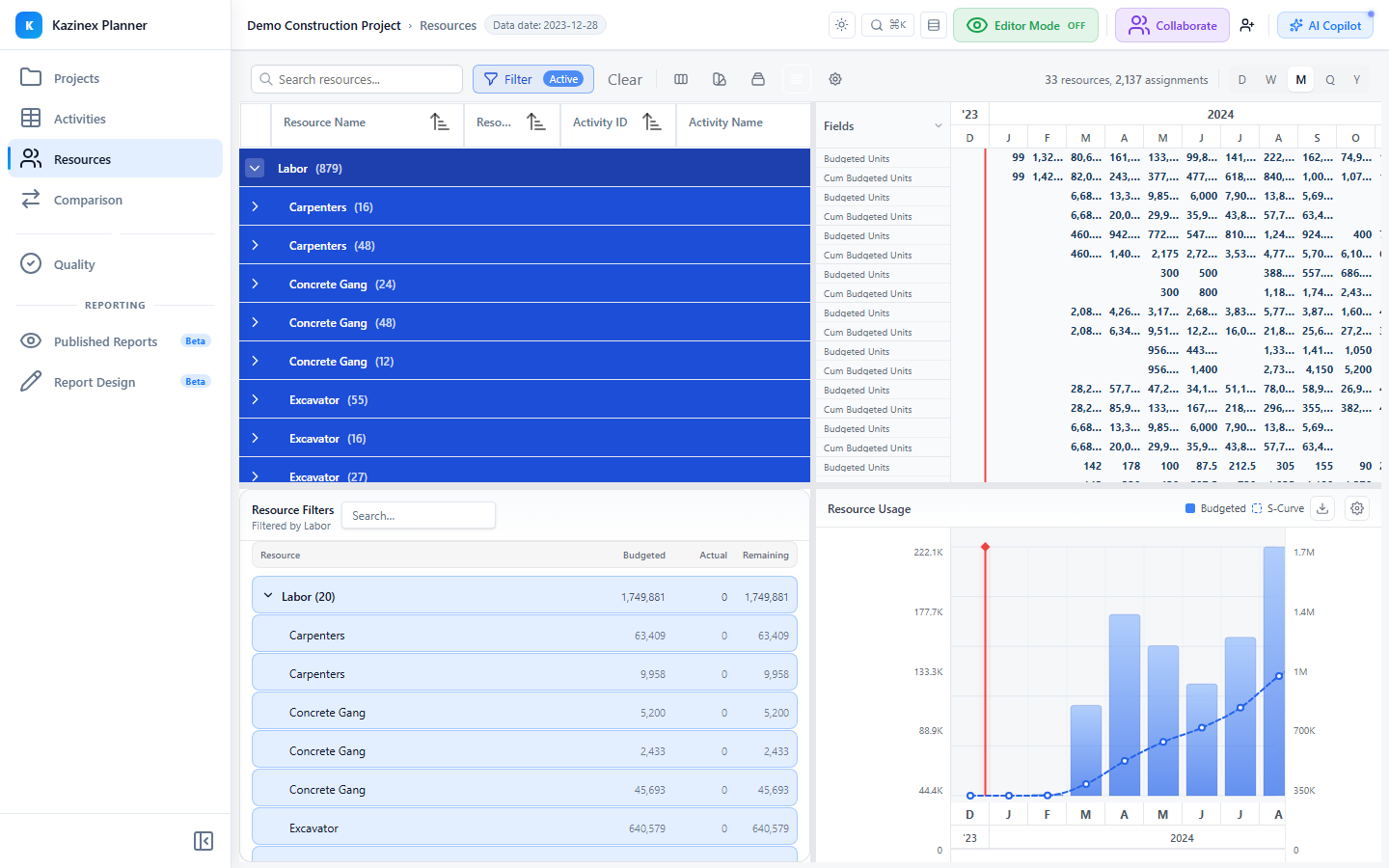
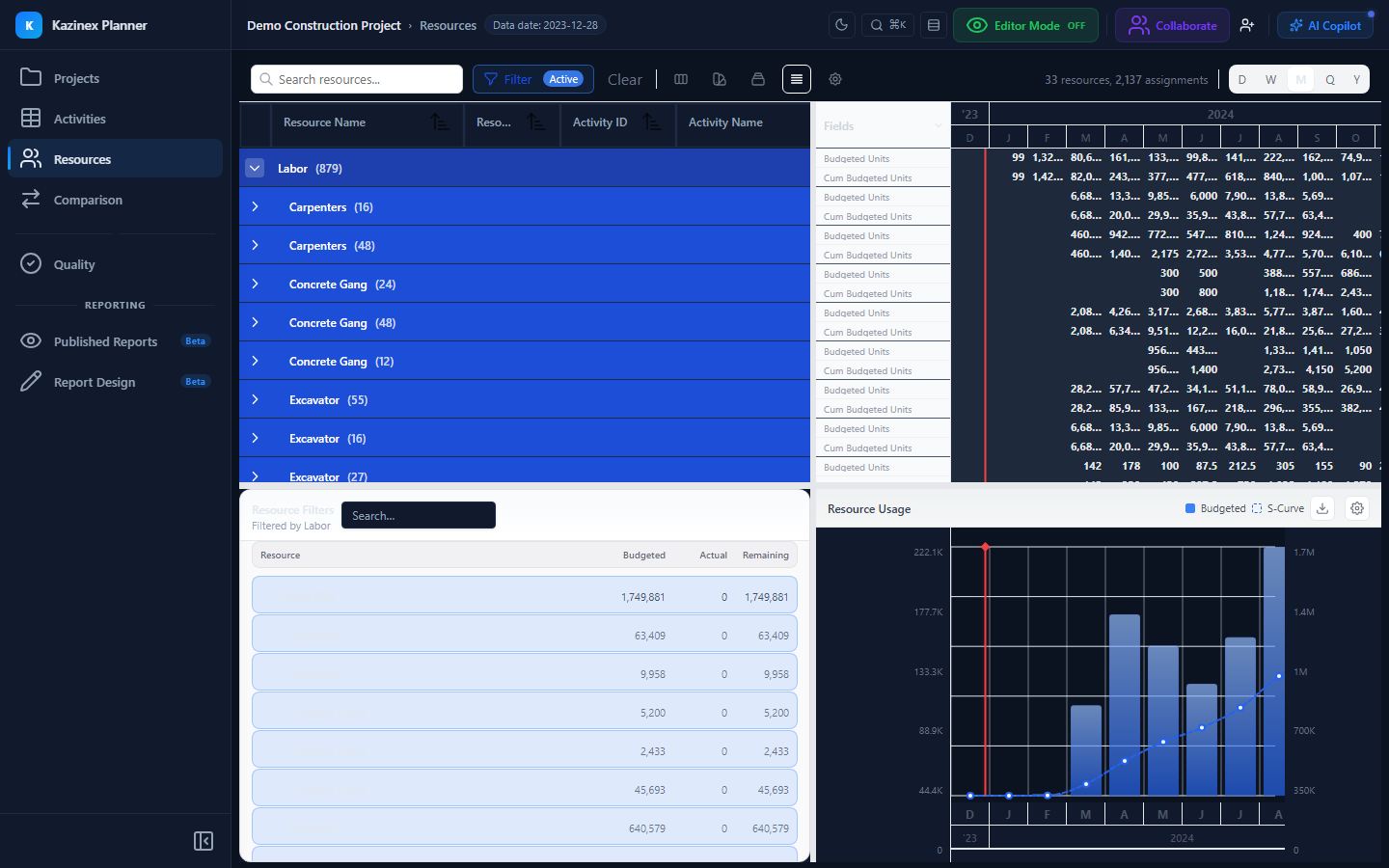
Opening the Filters Panel
| Method | Action |
|---|---|
| Toolbar button | Click the Filter icon in the Resources toolbar |
| Keyboard | Press Ctrl + Shift + F while the Resources tab is focused |
The panel slides in from the left and can be pinned open or collapsed.
Filter Categories
Resource Type
Filter resources by their classification:
| Type | Description |
|---|---|
| Labour | Human resources (crews, trades, individuals) |
| Material | Physical materials (concrete, steel, etc.) |
| Equipment | Plant and equipment (cranes, excavators, etc.) |
Select one or more types. When no types are selected, all types are shown.
Assignment Status
Show or hide resources based on whether they have activity assignments:
| Option | What It Shows |
|---|---|
| Assigned only | Resources that are linked to at least one activity |
| Unassigned only | Resources defined in the project but not linked to any activity |
| All | Both assigned and unassigned (default) |
Loading Threshold
Filter by resource utilisation level:
| Option | Condition |
|---|---|
| Over-allocated | Peak loading exceeds Max Units/Time |
| Fully allocated | Peak loading equals Max Units/Time (within 5% tolerance) |
| Under-allocated | Peak loading is below 80% of Max Units/Time |
| Any loading | No loading filter applied (default) |
Search by Name
Type in the search box to filter resources whose Resource ID or Resource Name contains the search text. The search is case-insensitive and updates as you type (debounced at 300ms).
Combining Filters
All active filters are combined with AND logic. For example:
- Type: Labour + Loading: Over-allocated → shows only over-allocated labour resources.
- Type: Equipment + Status: Assigned only → shows only equipment resources that have assignments.
The toolbar displays a badge count showing how many filters are active.
Clearing Filters
| Method | Action |
|---|---|
| Clear All button | Resets every filter to its default state |
| Individual clear | Click the × next to any active filter chip |
| Keyboard | Press Escape while the filter panel is focused |
Clearing filters immediately restores the full resource list across all four quadrants.
Filter Persistence
Filter selections are stored in session state. They persist while you navigate between tabs but reset when you close the browser tab or switch projects.
Combine resource filters with the Column Chooser to create focused views — filter to over-allocated labour resources and show only the Budget, Actual, and Remaining columns for a quick cost review.
Related Pages
- Resources Overview — four-quadrant layout and features
- Resource Grid — column details and sorting
- Resource Histogram — visual loading chart