Resource Histogram
Available in: Pro · Enterprise
Last updated: 05-Mar-2026
Overview
The Resource Histogram occupies the bottom-right quadrant of the Resources tab. It displays a stacked bar chart showing how much of each resource is allocated per time period. Bars that exceed the resource's maximum availability are highlighted in red to indicate over-allocation.
Use the histogram to spot resource bottlenecks, identify periods of under-utilisation, and validate that your resource plan is realistic.
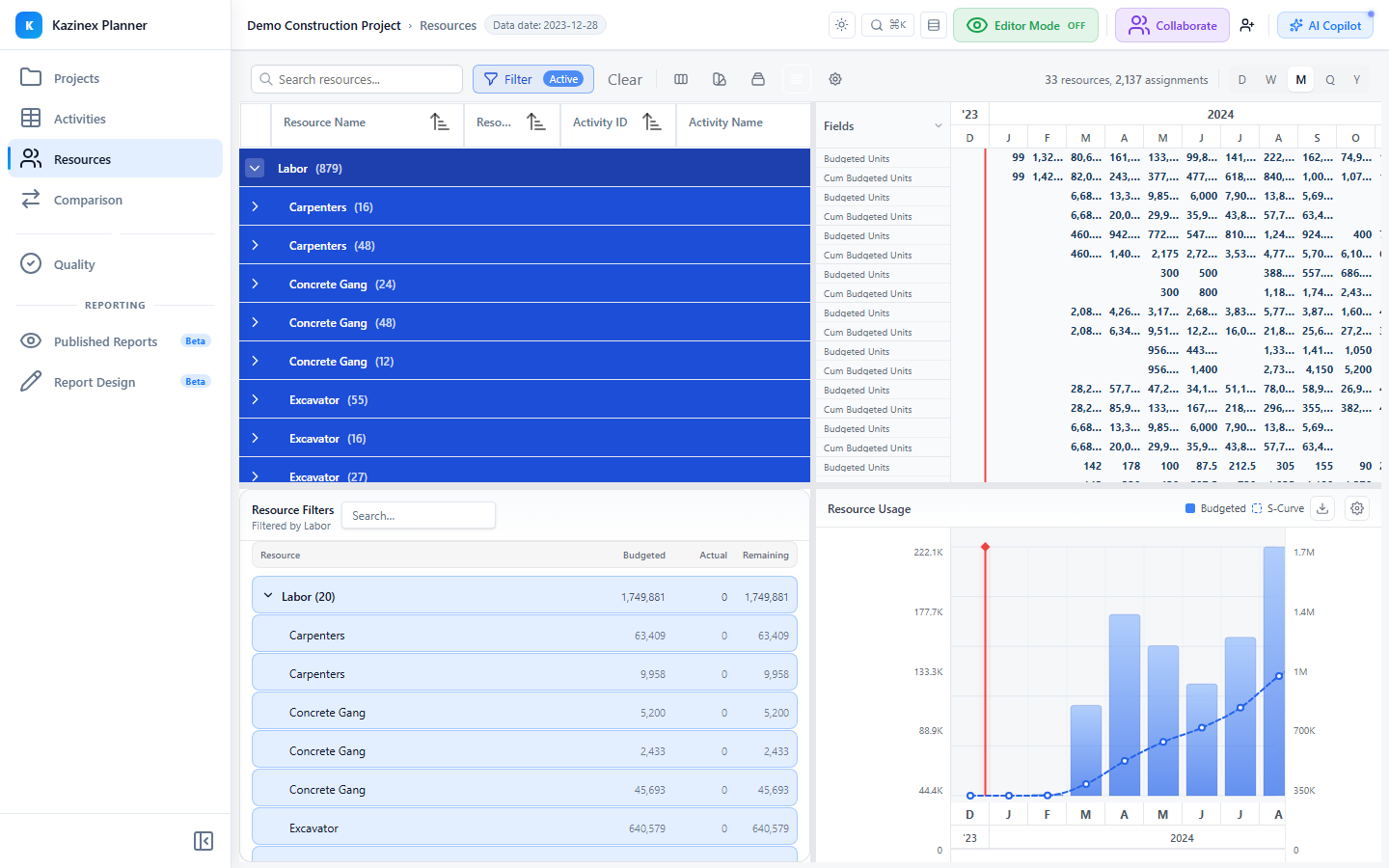
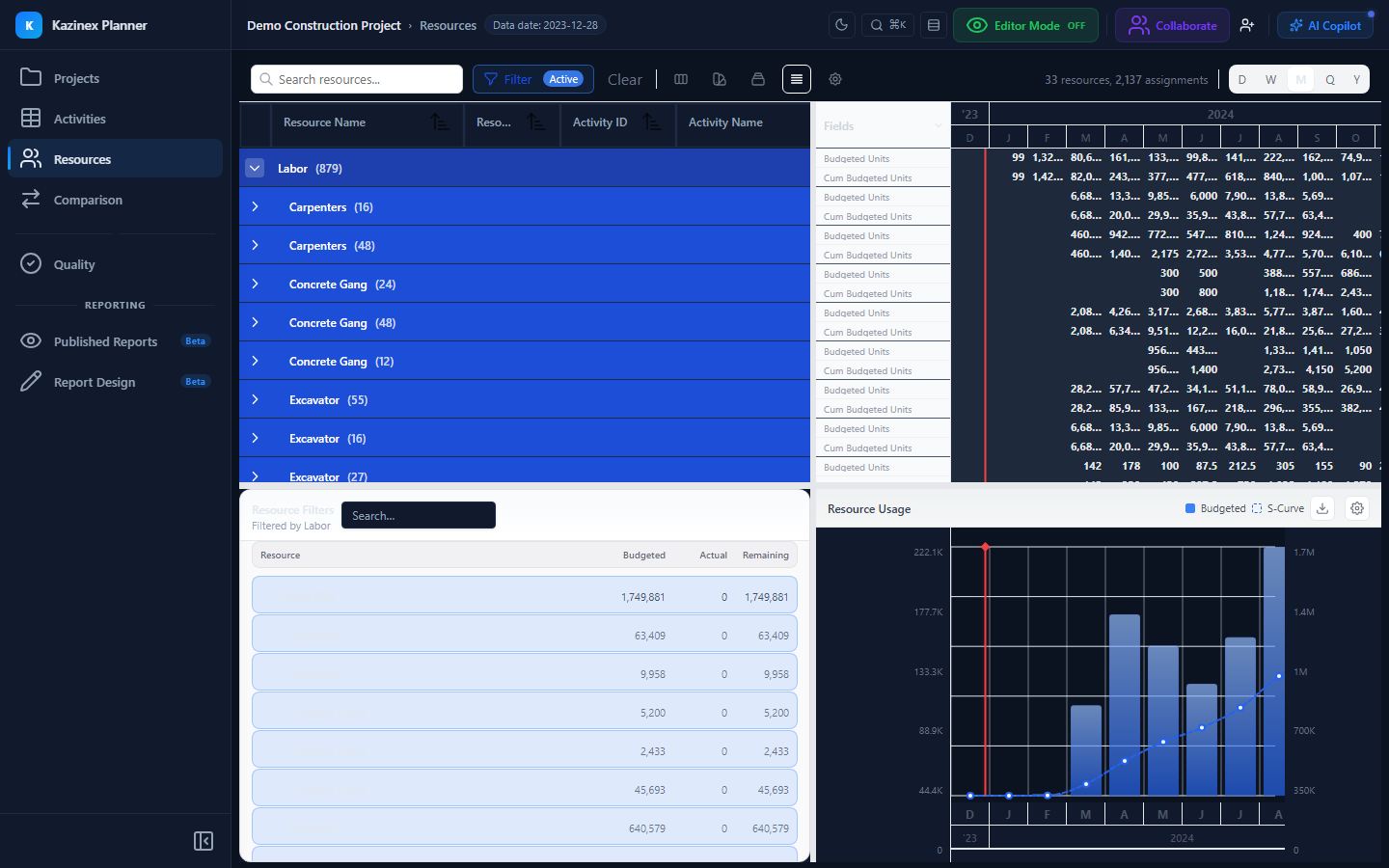
Reading the Histogram
Axes
| Axis | What It Shows |
|---|---|
| Horizontal (X) | Time periods — weeks, months, or quarters depending on your zoom level |
| Vertical (Y) | Resource loading — hours, units, or cost depending on the selected metric |
Bar Colours
| Colour | Meaning |
|---|---|
| Blue | Normal allocation — within the resource's maximum availability |
| Red | Over-allocation — the resource is assigned more work than its capacity allows |
| Grey | Actual (completed) work — shows actual usage for past periods |
| Light blue | Remaining work — planned but not yet completed |
Capacity Line
A horizontal dashed line shows the resource's Max Units/Time value. Any bar that extends above this line is over-allocated.
Time Period Options
Use the period selector in the histogram toolbar to switch between:
| Period | Bar Width | Best For |
|---|---|---|
| Weekly | 1 week | Detailed short-term analysis (1–3 months) |
| Monthly | 1 month | Medium-term planning (3–12 months) |
| Quarterly | 3 months | Portfolio-level resource overview |
The histogram automatically adjusts its scale when you change the period.
Metric Options
Use the metric selector to switch between:
| Metric | Description |
|---|---|
| Units | Resource loading in the resource's unit of measure (hours, tonnes, etc.) |
| Cost | Resource loading expressed as cost (units × cost rate) |
Interacting with the Histogram
Hover
Hover over any bar to see a tooltip with:
- Time period (e.g., "Week of 15 Mar 2026")
- Resource name
- Budgeted units for the period
- Actual units (if applicable)
- Remaining units
- Max available units
- Over-allocation amount (if any)
Click
Click a bar to select that time period. The Time-Phased Spreadsheet (top-right quadrant) scrolls to and highlights the corresponding column.
Zoom
Use the mouse wheel or the zoom controls in the toolbar to zoom in or out on the timeline. Zooming in reveals more granular time periods; zooming out aggregates data.
Pan
Click and drag horizontally to pan the histogram across the timeline. Alternatively, use the scroll bar at the bottom.
Synchronisation
The histogram is synchronised with the other three quadrants:
| Interaction | Effect |
|---|---|
| Select a resource in the Resource Grid | Histogram filters to show only that resource's loading |
| Select multiple resources | Histogram shows stacked bars for all selected resources |
| Click a node in the Resource Hierarchy | Histogram shows aggregated loading for all resources under that node |
| Click a bar in the histogram | Time-phased spreadsheet scrolls to the corresponding period |
Tips
- Start with the Monthly period for a high-level view, then switch to Weekly for detail.
- Use the red over-allocation bars as your primary signal — these indicate schedule risk.
- Compare actual (grey) vs. remaining (light blue) bars to assess how realistic the remaining plan is.
- Select a parent node in the Resource Hierarchy to see aggregated loading for an entire resource category (e.g., all labour resources).
Troubleshooting
| Problem | Solution |
|---|---|
| Histogram shows no data | Ensure your schedule has resource assignments. Resources without assignments have no loading data. |
| All bars are grey | Your data date is in the future. Grey bars represent actual (past) work. Check the data date in Project Properties. |
| Over-allocation not highlighted | Verify the resource's Max Units/Time is set correctly. A value of 0 disables the capacity line. |
Related Documentation
- Resources Overview — four-quadrant layout introduction
- Resource Grid — browse and manage resources
- Resource Filters — filter by type, assignment, and loading