Portfolio Overview
Available in: Pro · Enterprise
Last updated: 05-Mar-2026
Overview
The Portfolio Overview provides a high-level dashboard of all projects in your workspace. It aggregates key performance indicators, quality scores, and schedule health metrics so you can spot issues without drilling into individual projects.
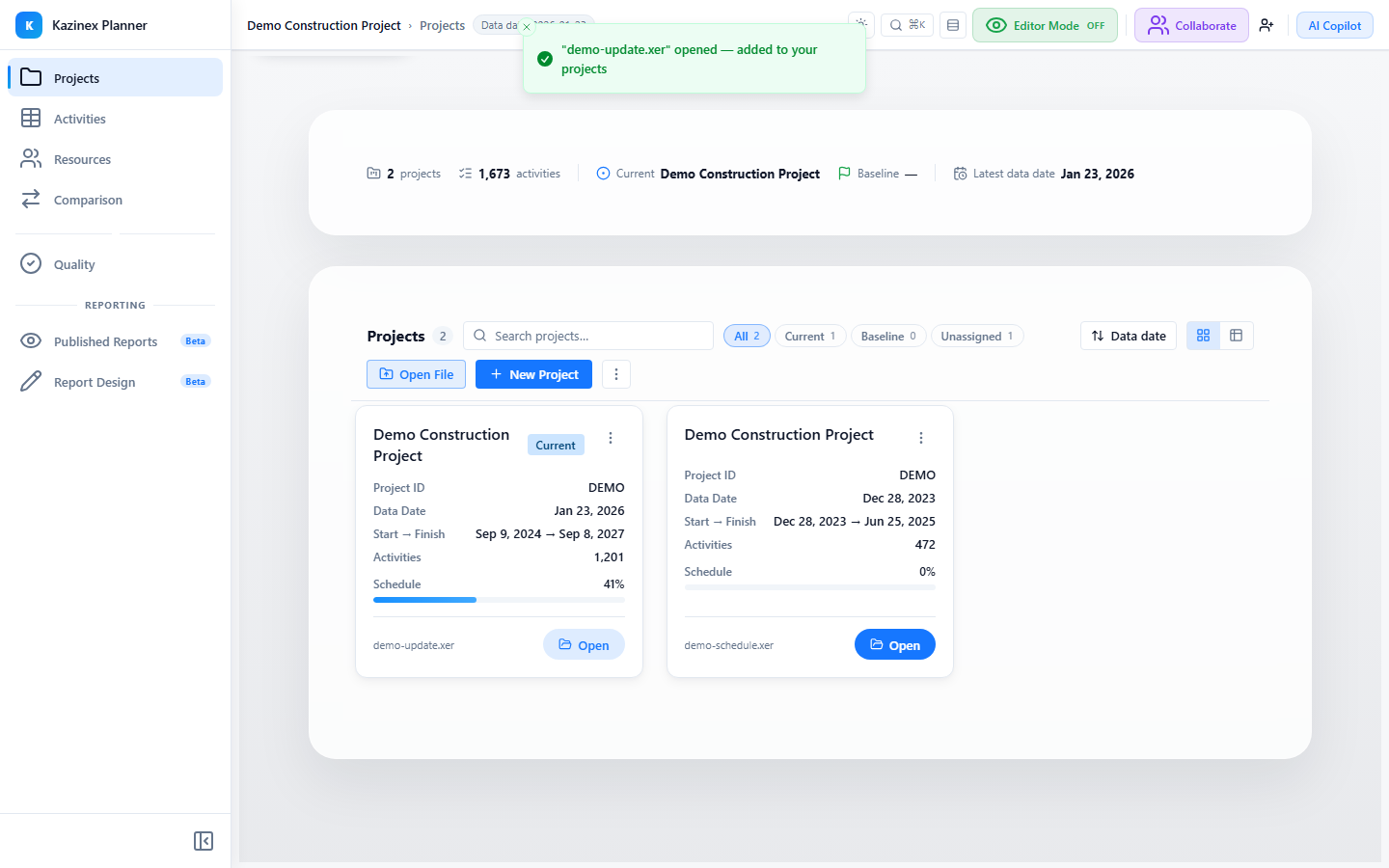
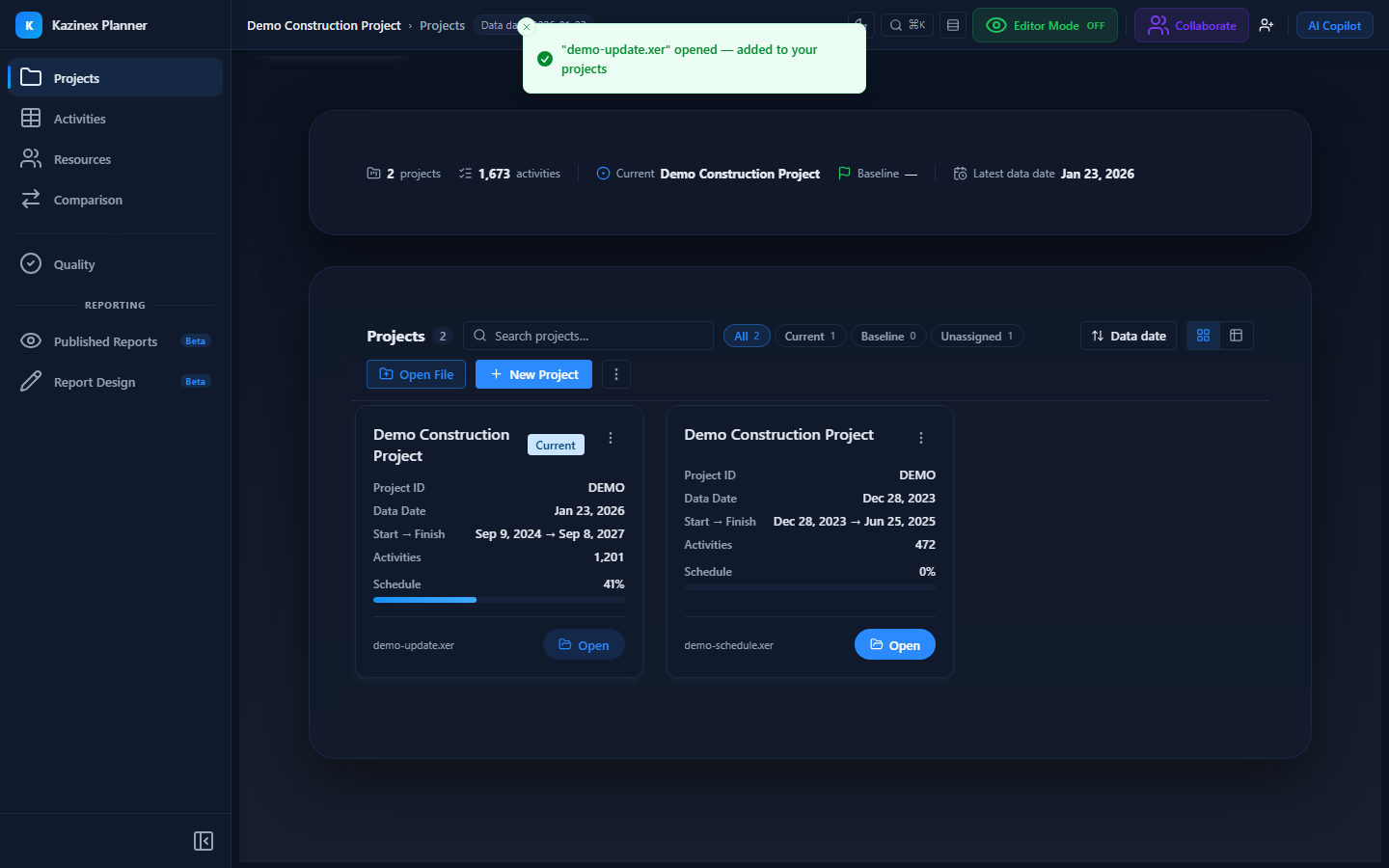
Access the portfolio overview from the Portfolio Pulse hero section at the top of the Projects tab.
Portfolio KPIs
The hero section displays real-time metrics drawn from your current and baseline schedules:
| KPI | Description |
|---|---|
| Total Projects | Count of all uploaded schedules in the workspace |
| Active Projects | Projects marked as Current (not archived) |
| Average Quality Score | Weighted average of all current projects' quality scores |
| Schedule Health | Percentage of projects with a quality score above 70% |
| On-Track Rate | Percentage of projects where forecast finish ≤ baseline finish |
KPIs update automatically when you upload new schedules or recalculate quality checks.
Visual Indicators
Status Badges
Each project in the portfolio is tagged with a colour-coded badge:
| Badge | Colour | Meaning |
|---|---|---|
| Current | Blue | The active working schedule |
| Baseline | Green | The approved baseline schedule |
| Archived | Grey | Older versions kept for reference |
| None | No badge | Not yet assigned a role |
Quality Score Ring
Each project card includes a circular progress indicator showing its quality score:
| Score Range | Colour | Interpretation |
|---|---|---|
| 80–100% | Green | Healthy schedule |
| 60–79% | Amber | Needs attention |
| 0–59% | Red | Significant issues |
Sorting and Grouping
Sort Options
Sort the portfolio view by:
| Field | Direction | Default |
|---|---|---|
| Project Name | A–Z / Z–A | — |
| Upload Date | Newest / Oldest | Newest first ✓ |
| Quality Score | Highest / Lowest | — |
| Activity Count | Most / Fewest | — |
| Data Date | Latest / Earliest | — |
Group By
Group projects by:
- Status — Current, Baseline, Archived
- Quality Band — Green / Amber / Red
- Upload Month — Grouped by the month uploaded
- None — Flat list (default)
Portfolio-Level Actions
From the portfolio overview you can:
| Action | How |
|---|---|
| Bulk import | Upload multiple XER/XML files at once — see Bulk Import |
| Mark Current / Baseline | Right-click a project → change its role — see Current & Baseline Marking |
| Delete projects | Select one or more projects → Delete |
| Export summary | Download a CSV of all project KPIs via the Export button |
Refresh Behaviour
The portfolio overview refreshes when:
- A new schedule is uploaded or deleted
- A quality check completes
- A project's role (Current/Baseline) changes
- You manually click the Refresh button in the toolbar
Metric calculations run client-side for instant feedback — no server round-trip required.
Pin the projects with the lowest quality scores to the top by sorting Quality Score → Lowest first. This keeps problem schedules visible so they don't slip through review cycles.
Related Pages
- Project Views — card and table views, quick filters
- Uploading Schedules — how to get projects into Kazinex
- Quality Score — how scores are calculated