Context Menus
Available in: All plans
Last updated: 27-Feb-2026
Overview
Right-click anywhere in the Activities workspace to open a context-sensitive menu. Kazinex provides five context menu targets, each with actions relevant to what you clicked on. You can also press Shift + F10 to open the context menu for the currently focused element.
All context menus are built on Ant Design menu components with keyboard navigation support.
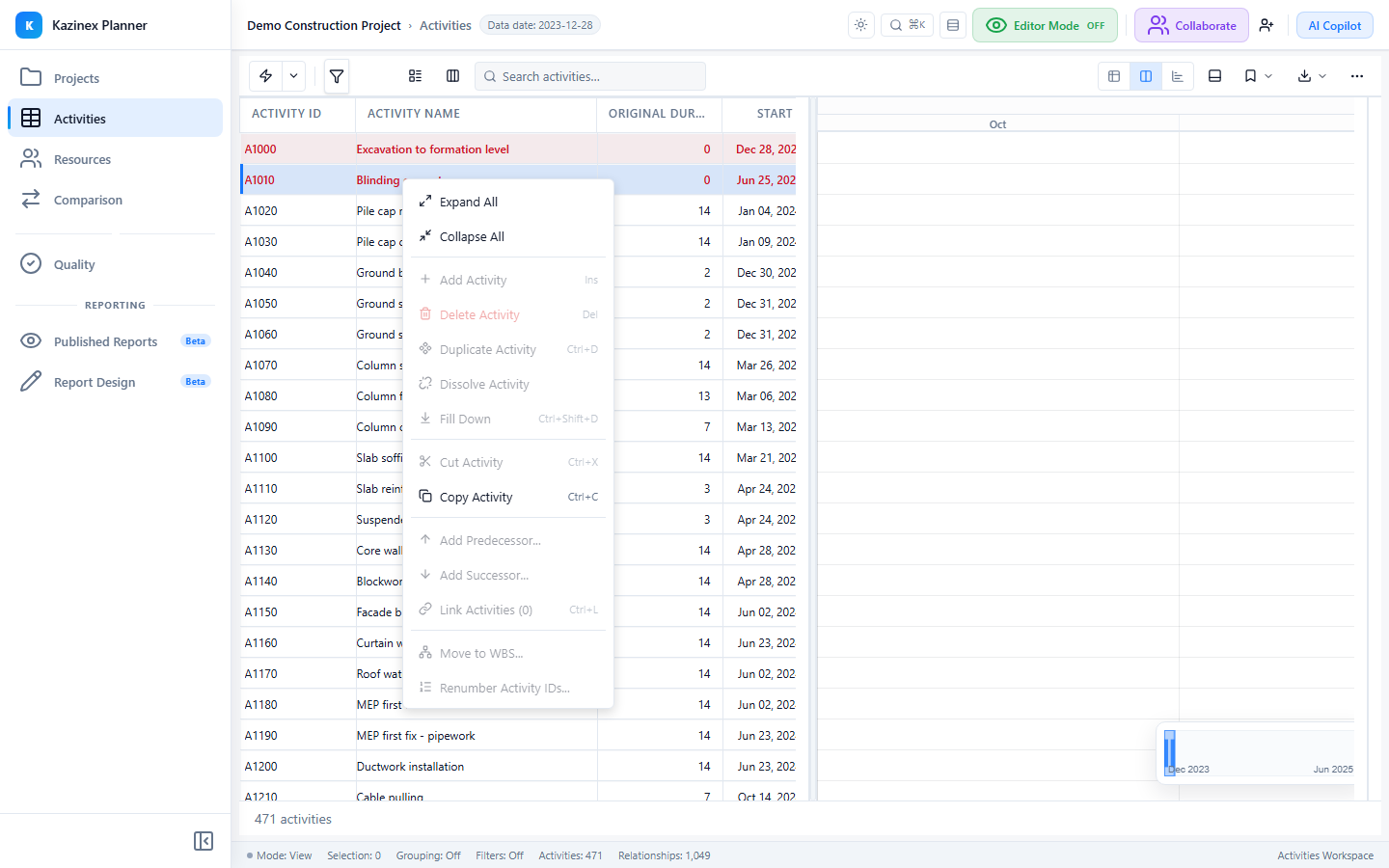
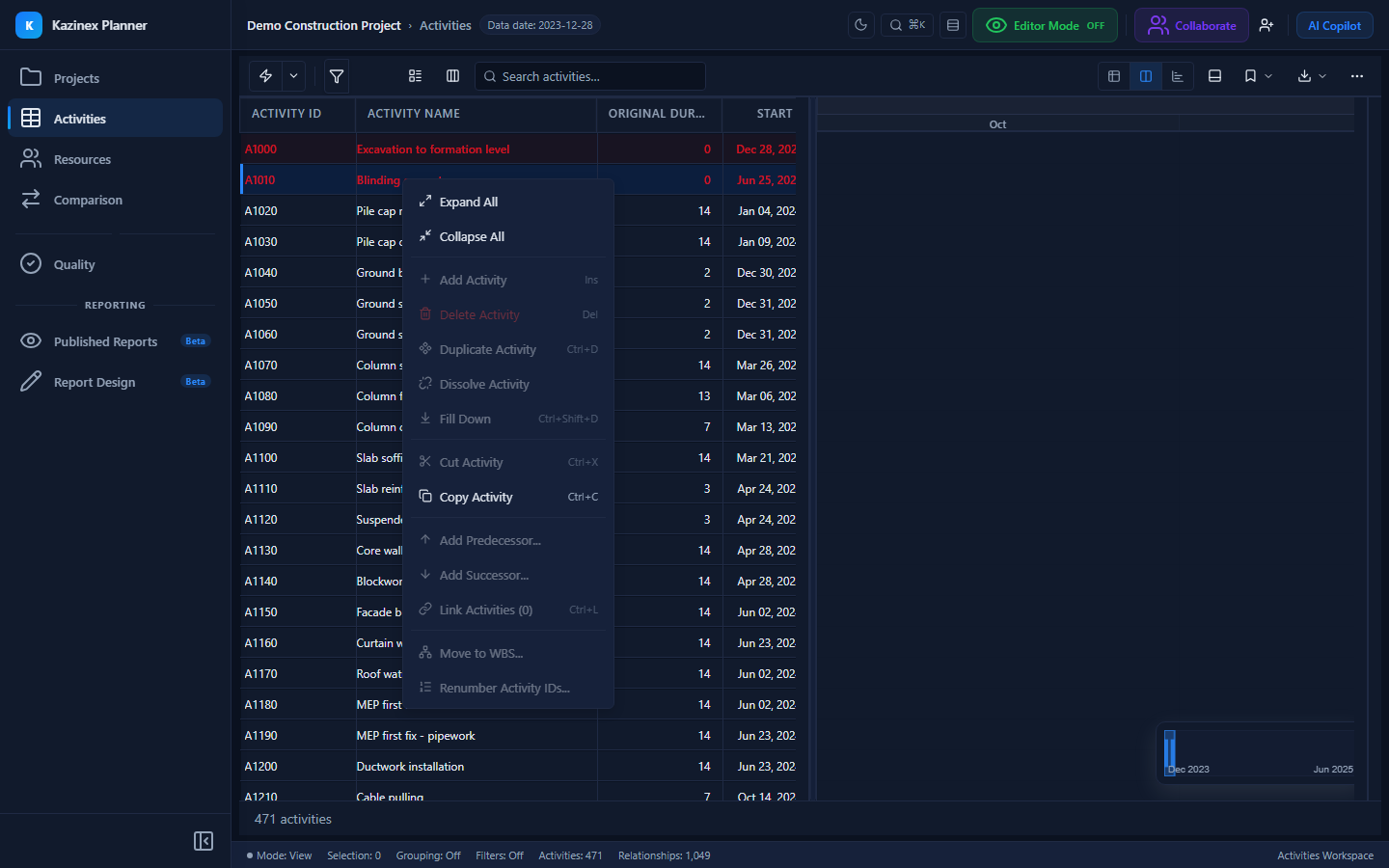
Context Menu Targets
Row Context Menu
Right-click any activity row in the grid.
| Action | Description |
|---|---|
| View Details | Open the Activity Details panel for this activity |
| Edit Activity | Start inline editing on the clicked cell (Editor Mode) |
| Insert Activity Above | Add a new activity above this row (Editor Mode) |
| Insert Activity Below | Add a new activity below this row (Editor Mode) |
| Delete Activity | Remove this activity from the schedule (Editor Mode) |
| Copy Activity ID | Copy the Activity ID to your clipboard |
| Scroll to in Gantt | Pan the Gantt chart to centre this activity's bar |
Header Context Menu
Right-click any column header.
| Action | Description |
|---|---|
| Sort Ascending | Sort the grid by this column (A→Z or low→high) |
| Sort Descending | Sort the grid by this column (Z→A or high→low) |
| Remove Sort | Clear sorting on this column |
| Group by This Column | Group activities by the values in this column |
| Remove Grouping | Clear grouping on this column |
| Hide Column | Remove this column from the current view |
| Column Chooser | Open the Column Chooser dialog |
Bar Context Menu
Right-click a Gantt bar (task, milestone, or summary).
| Action | Description |
|---|---|
| View Details | Open the Activity Details panel |
| Scroll to in Grid | Highlight the corresponding row in the grid |
| Add Predecessor | Start drawing a dependency line from this bar (Editor Mode) |
| Add Successor | Start drawing a dependency line to this bar (Editor Mode) |
| Zoom to Fit | Adjust the Gantt zoom so this bar is centred and clearly visible |
The menu adapts based on bar type:
- Task bars show all actions.
- Milestone bars show all actions except duration-related ones.
- Summary bars show view and zoom actions only (summaries are read-only).
Background Context Menu
Right-click an empty area of the Gantt chart.
| Action | Description |
|---|---|
| Zoom In | Increase the timescale magnification |
| Zoom Out | Decrease the timescale magnification |
| Zoom to Fit | Auto-fit the timescale to show all activities |
| Add Sight Line | Place a sight line marker at the clicked date |
| Go to Data Date | Pan the chart to centre on the data date |
The clicked date is passed to the menu via HeaderContextInfo or BackgroundContextInfo.
Dependency Context Menu
Right-click a dependency line between two bars.
| Action | Description |
|---|---|
| View Relationship | Show predecessor ID, successor ID, type, and lag |
| Edit Lag | Open an inline editor to change the lag value (Editor Mode) |
| Change Type | Switch between FS, SS, FF, and SF (Editor Mode) |
| Delete Relationship | Remove this dependency (Editor Mode) |
The menu receives a DependencyContextInfo object with the relationshipId, relationshipType, predecessorId, successorId, and lag.
Group Row Context Menu
When activities are grouped, right-click a group header row for additional actions:
| Action | Description |
|---|---|
| Expand All | Expand all groups in the grid |
| Collapse All | Collapse all groups in the grid |
| Expand This Group | Expand only this group |
| Collapse This Group | Collapse only this group |
Menu Registry
Context menus are assembled dynamically by a Menu Registry that maps each target to a MenuBuilder function. This architecture allows extensions and plugins to add custom menu items in the future.
Related Pages
- Activities Grid — Grid overview
- Gantt Overview — Gantt features
- Dependency Lines — Relationship rendering
- Keyboard Shortcuts — All shortcuts