Inline Editing
Available in: Pro · Enterprise (Editor Mode)
Last updated: 27-Feb-2026
Overview
Inline editing lets you modify activity values directly in the grid without opening a separate form. Double-click a cell to edit its existing value, or single-click to select it and start typing to overwrite immediately (see Quick-Type Entry) — both work interchangeably. Kazinex provides six specialised cell editors that match the data type of each column.
Inline editing is available in Editor Mode only. If you opened a schedule in read-only mode, switch to Editor Mode from the toolbar to enable cell editing. Turning on Editor Mode also adds a vertical edit rail of icon shortcuts (add/delete row, indent/outdent WBS, edit, list, calendar, resources, codes) along the left edge of the grid.
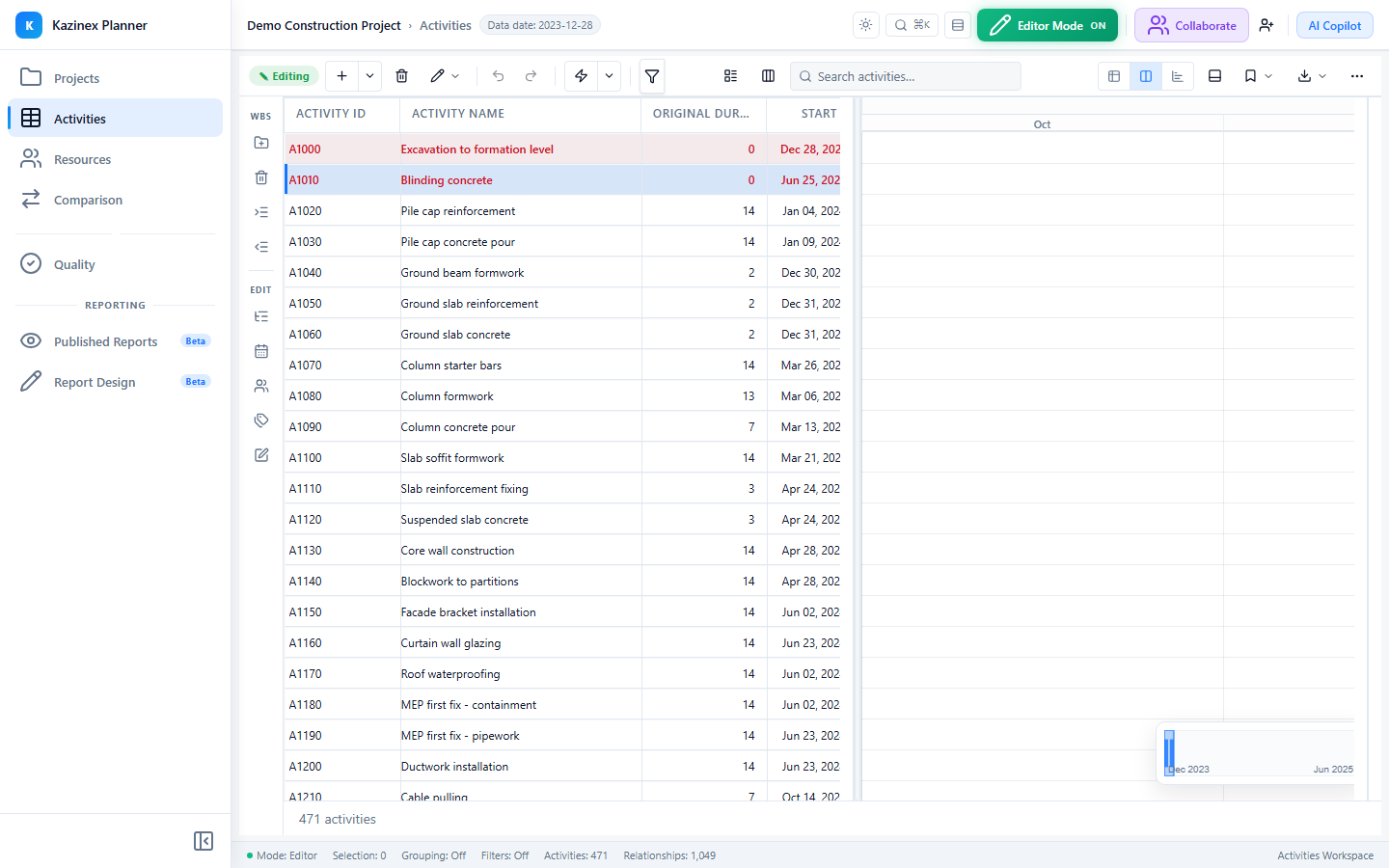
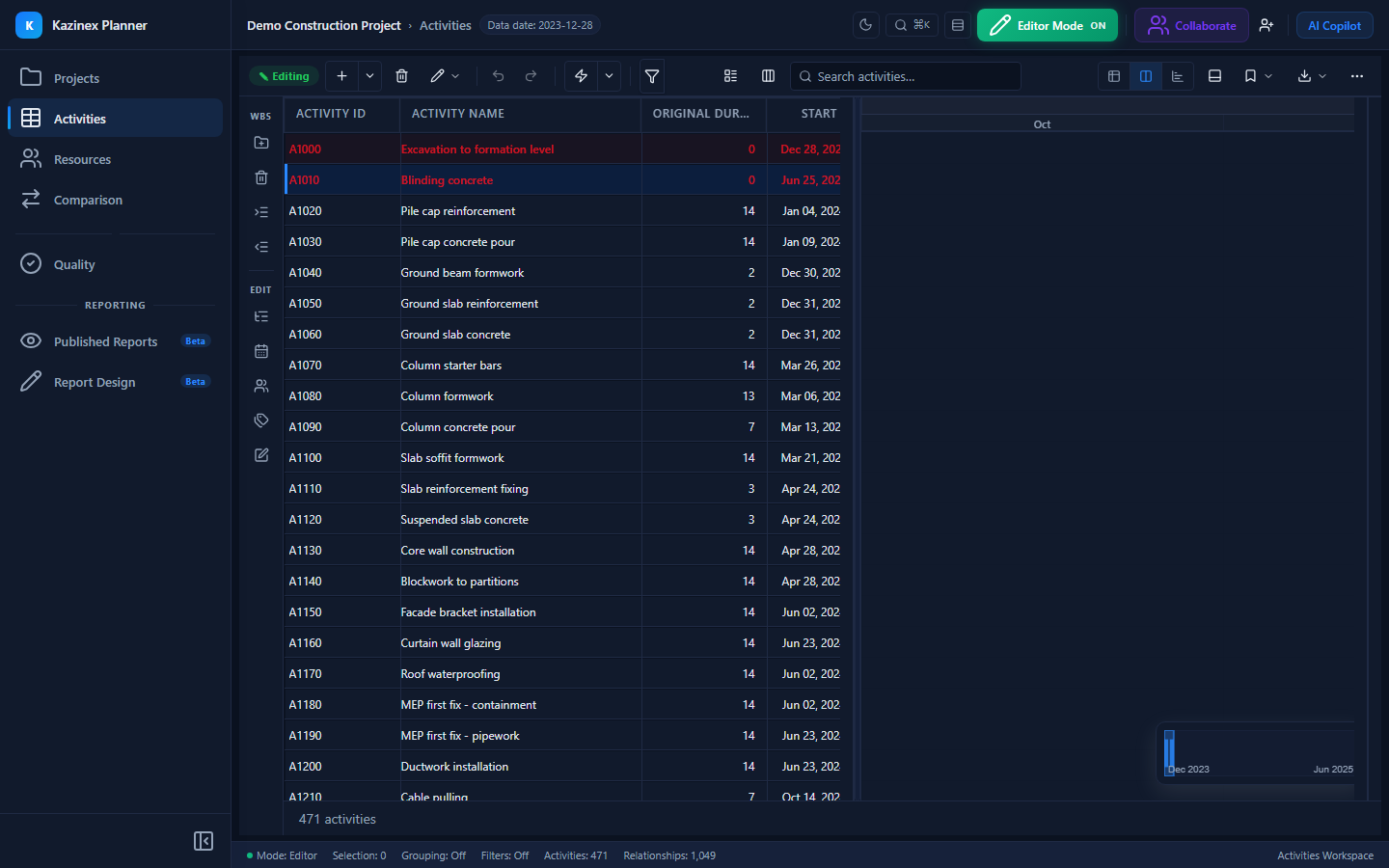
Cell Editor Types
Kazinex uses a CellEditorFactory that detects the column data type and renders the correct editor.
| Editor | Data Type | Behaviour |
|---|---|---|
| Text | String fields (Activity Name, WBS Name, notes) | Free-text input. Press Enter to confirm or Escape to cancel. |
| Number | Numeric fields (Original Duration, Float) | Accepts digits, decimal point, and minus sign. Validates range on confirm. |
| Date | Date fields (Start, Finish, Actual Start) | Calendar picker with date validation. Dates must fall within the project calendar. |
| Duration | Duration fields (Original Duration, Remaining Duration) | Numeric input suffixed with the project duration unit (hours, days, weeks). Converts to hours internally. |
| Select | Enumerated fields (Activity Type, Status, Calendar) | Dropdown list populated from valid options. Type to search within the list. |
| Boolean | Toggle fields (Critical, Milestone) | Checkbox toggle. Click once to flip the value. |
How to Edit a Cell
- Double-click any editable cell — the editor overlay appears positioned on that cell.
- Type the new value. For text and number editors, the existing value is selected so you can overwrite immediately.
- Press Enter to confirm the edit, or press Escape to cancel.
- The grid updates instantly and the change is added to the undo stack.
Quick-Type Entry
You can also start editing by selecting a cell and typing any character. The editor opens with your typed character as the initial value — similar to the behaviour in Primavera P6 and Excel.
Cell Navigation
While editing, use these keyboard shortcuts to move between cells:
| Key | Action |
|---|---|
| Tab | Confirm and move to the next editable cell in the row |
| Shift + Tab | Confirm and move to the previous editable cell |
| Enter | Confirm and move down to the same column in the next row |
| Shift + Enter | Confirm and move up to the same column in the previous row |
| Escape | Cancel the edit and return to cell selection mode |
Fill Down
When you have a cell selected (not in edit mode), press Ctrl + D to copy the cell value down to all selected rows below. This is useful for bulk-updating a column value across multiple activities.
Fill Down works with text, number, date, duration, and select editors.
Validation
Each editor validates the input before confirming:
- Number editor — Rejects non-numeric input and values outside the allowed range.
- Date editor — Rejects dates that fall on non-working days (unless the calendar allows them).
- Duration editor — Rejects negative values and zero for non-milestone activities.
- Select editor — Only allows values from the predefined option list.
If validation fails, a red border and error message appear on the cell. Fix the value or press Escape to cancel.
Read-Only Columns
Some columns are always read-only because their values are calculated by the scheduling engine:
- Early Start, Early Finish, Late Start, Late Finish
- Total Float, Free Float
- Critical flag (calculated from float)
- BL Project Start, BL Project Finish (baseline fields)
You cannot edit these columns. Hovering over a read-only cell shows a lock icon.
Undo and Redo
Every inline edit is recorded on the undo stack. Press Ctrl + Z to undo the last change or Ctrl + Y to redo. The undo stack supports up to 50 operations.
See Undo & Redo for details.
Related Pages
- Activities Grid — Grid overview and toolbar
- Column Chooser — Add or remove columns
- Editor Overview — Full editor capabilities
- Undo & Redo — Undo stack details