View Modes
Available in: All plans
Last updated: 27-Feb-2026
Overview
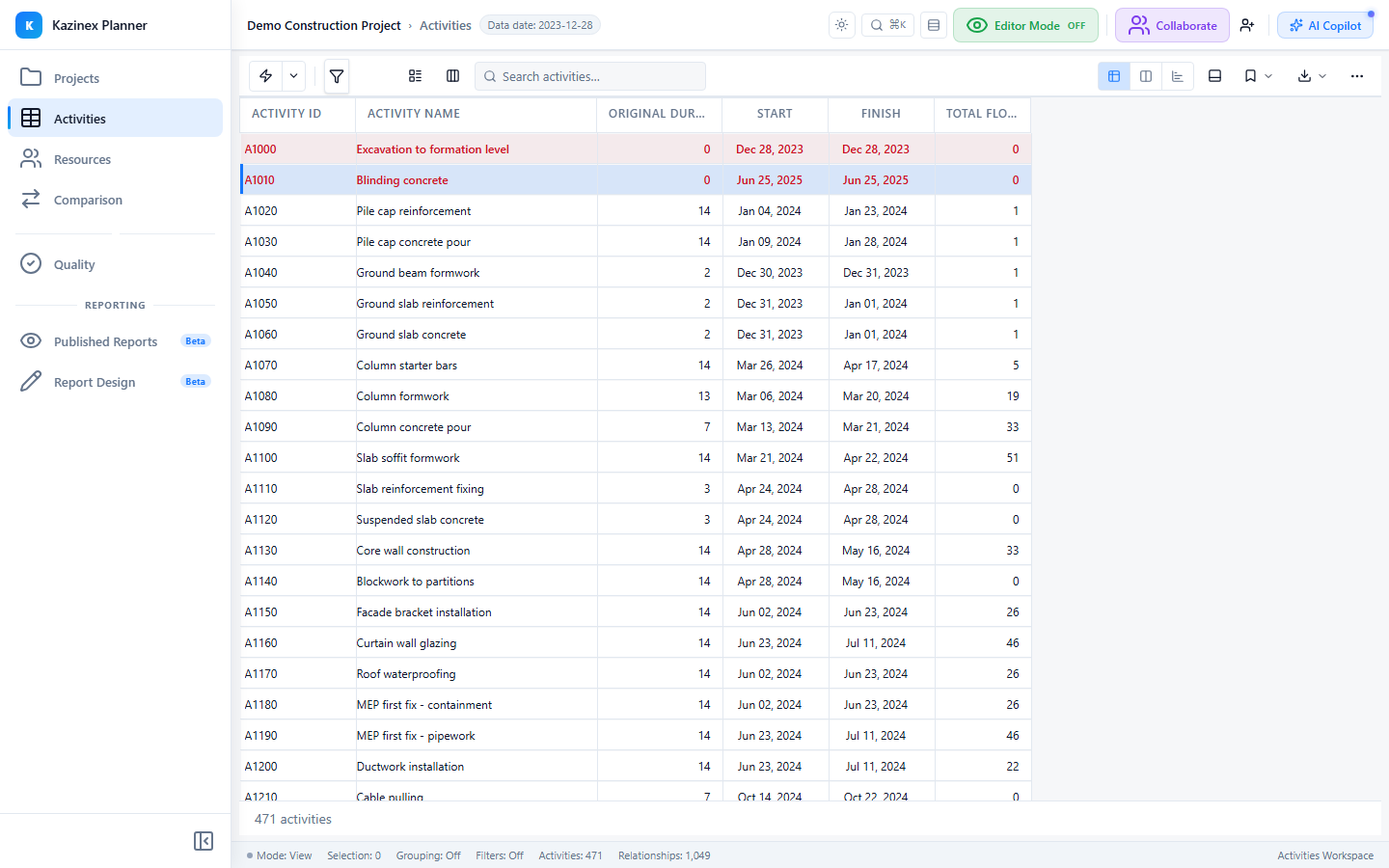
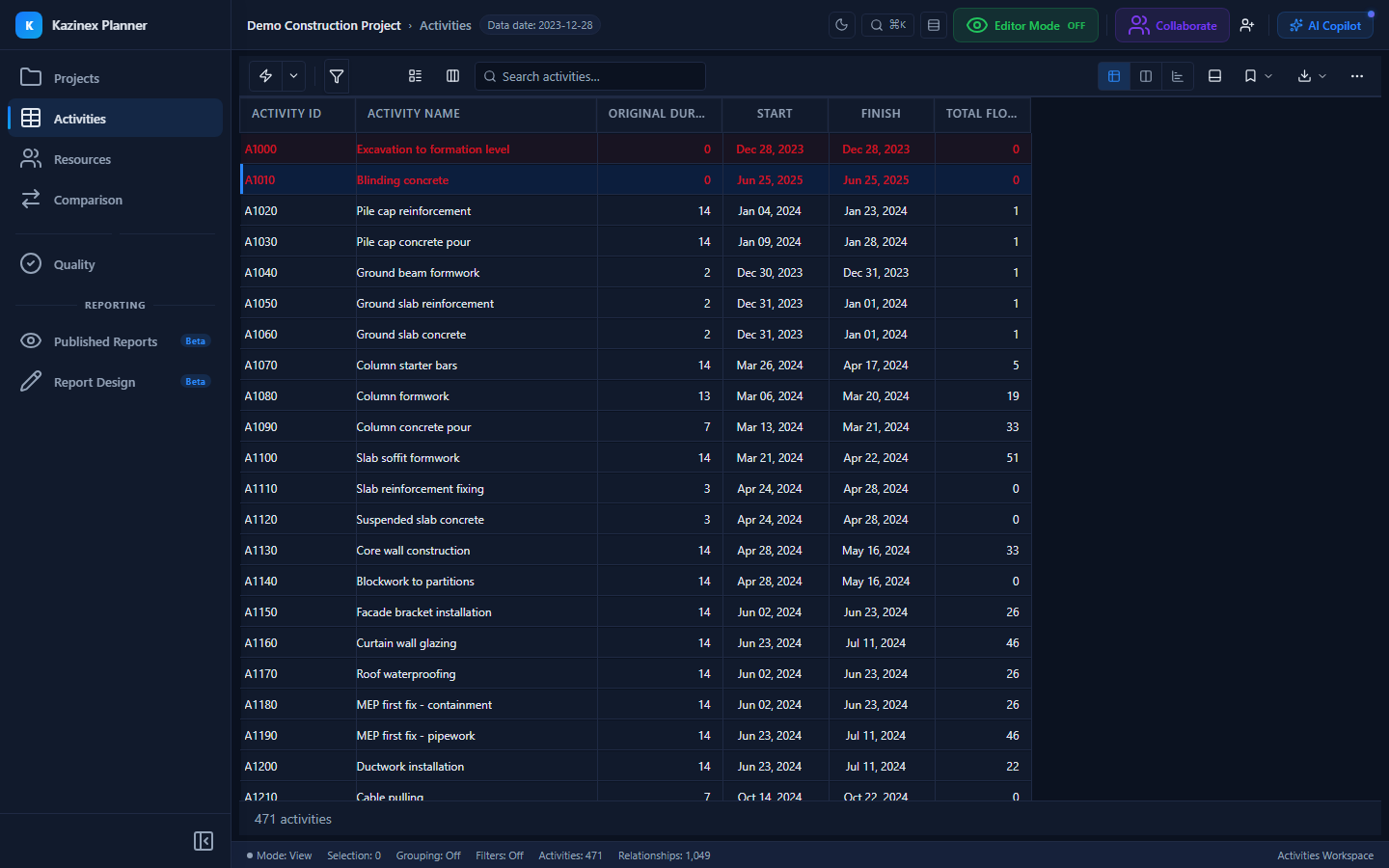
Kazinex provides three view modes that control how the activities workspace is laid out. Switch between them using the three-button toggle in the top-right corner of the toolbar.
Available Modes
Grid Mode
Full-width data grid with no Gantt chart visible. This mode is best for:
- Data-heavy analysis and bulk column review
- Exporting tabular data
- Working with many columns simultaneously
- Quality score analysis with audit columns
The grid expands to fill the entire workspace width.
Split Mode (Default)
Grid and Gantt chart displayed side by side with a draggable divider. This is the default view and is best for:
- General schedule review
- Correlating bar positions with row data
- Drag interactions (reschedule, progress updates)
- Dependency line inspection
Divider behaviour:
| Action | Result |
|---|---|
| Drag the centre divider | Resize panes freely (minimum 260 px each side) |
| Double-click the divider | Reset to the default 50/50 split |
Both panes share a synchronised vertical scroll. Each pane has its own horizontal scrollbar.
Gantt Mode
Full-width Gantt chart with no grid columns. Best for:
- Visual scheduling and presentation
- Printing a Gantt-only layout
- Large monitors or projector displays
- Inspecting bar styles and dependency routing
The Gantt expands to fill the entire workspace width.
Switching Modes
Click one of the three buttons in the toolbar toggle:
| Button | Mode | Keyboard Shortcut |
|---|---|---|
| Grid icon | Grid only | — |
| Split icon | Grid + Gantt | — |
| Gantt icon | Gantt only | — |
The switch is instant — no data reload occurs. Your column selections, grouping, and filter state are preserved across mode changes.
Mode Persistence
Your last-used view mode is saved per browser session. When you reopen the same schedule, Kazinex restores your preferred view mode automatically.
Tips
- Use Grid mode when you need to see 15+ columns at once without horizontal scrolling.
- Use Split mode when reviewing critical path logic — you can click an activity in the grid and see its bar highlighted in the Gantt.
- Use Gantt mode for stakeholder presentations or when printing a visual schedule.
Related Pages
- Activities Grid — Grid features and toolbar
- Gantt Overview — Gantt chart features
- Gantt Navigation — Zoom, pan, and minimap