AI Copilot — Grid & Column Commands
Time: ~10 minutes Level: Beginner Applies to: Free · Pro · Enterprise
What You Will Learn
By the end of this tutorial, you will be able to:
- Add and remove grid columns using the AI Copilot
- Apply column presets with a single command
- Group and sort the grid via natural language
- Expand and collapse groups
- Switch the UI theme (light/dark)
Prerequisites
- A Kazinex account (any tier)
- A schedule loaded with activities
- Familiarity with the AI Copilot panel (see Master the AI Copilot)
Step 1 — Add a Column to the Grid
Use natural language to add a column without opening the Column Chooser.
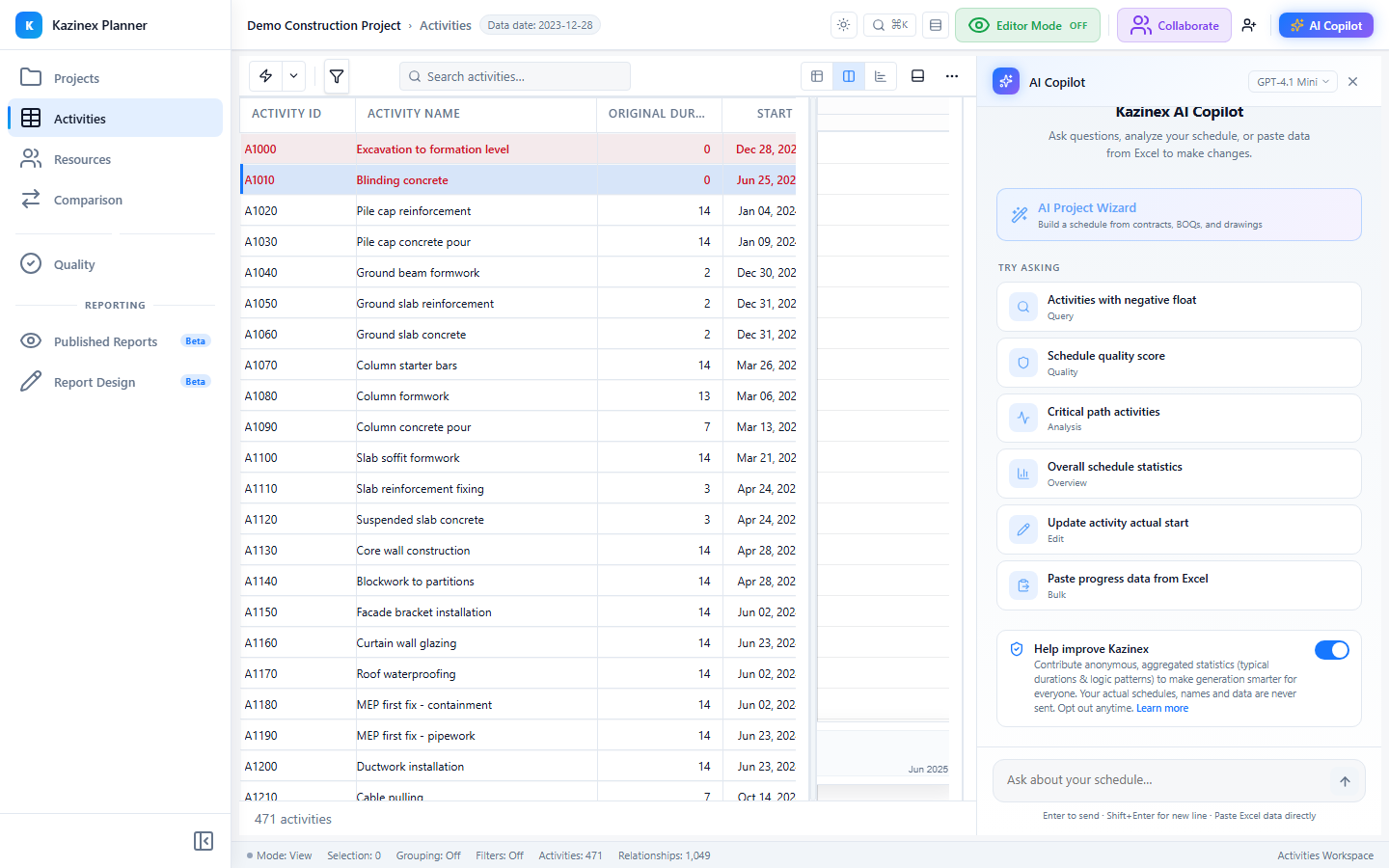
- Open the AI Copilot panel (Ctrl+Shift+I).
- Type: "Add total float to the grid"
- Press Enter.
- The Copilot adds the Total Float column to the grid immediately.
What you should see: The Total Float column appears in the grid. The Copilot confirms: "Added Total Float column to the grid."
Step 2 — Add Multiple Columns at Once
Add several columns in a single command.
- Type: "Add labour percent, cost percent, and schedule percent to the grid"
- Press Enter.
- The Copilot uses smart column matching to find the correct columns and adds all three.
What you should see: Three new percentage columns appear in the grid. The Copilot handles British/American spelling variations and abbreviations automatically (for example, "labour" matches "Labor Units Percent Complete").
Step 3 — Remove a Column
Remove a column you no longer need.
- Type: "Remove total float from the grid"
- Press Enter.
- The column hides from the grid.
What you should see: The Total Float column disappears from the grid. The column is hidden, not deleted — you can add it back at any time.
Step 4 — List Available Presets
See which column presets are available.
- Type: "List available column presets"
- Press Enter.
- The Copilot returns a table of preset names and descriptions.
What you should see: A list showing 8 presets: Default, Baseline, Progress, Updated Programme, Earned Value, Dates Detail, Float Analysis, and Resources. Each preset has a brief description.
Step 5 — Apply a Column Preset
Switch the entire grid layout with one command.
- Type: "Apply the Earned Value preset"
- Press Enter.
- The grid replaces its current columns with the Earned Value preset columns.
What you should see: The grid now shows EVM-specific columns: BAC, BCWS, BCWP, ACWP, SV, CV, SPI, CPI, and EAC. All previous columns are replaced.
Step 6 — Group Activities
Group the grid by a field.
- Type: "Group by WBS Level 2"
- Press Enter.
- Activities nest under WBS Level 2 headings.
What you should see: The grid shows group header rows with WBS names. Each group can be expanded or collapsed.
Step 7 — Sort the Grid
Sort activities by a column.
- Type: "Sort by total float ascending"
- Press Enter.
- Activities reorder so the lowest float appears first.
What you should see: The grid sorts with critical activities (zero or negative float) at the top and high-float activities at the bottom.
Step 8 — Expand and Collapse Groups
Control group visibility via the Copilot.
- Type: "Collapse all groups"
- Press Enter — all groups collapse to show only header rows.
- Type: "Expand all groups"
- Press Enter — all groups expand to show their activities.
What you should see: Groups toggle between collapsed (headers only) and expanded (headers plus activity rows) states.
Step 9 — Switch the Theme
Change the UI appearance.
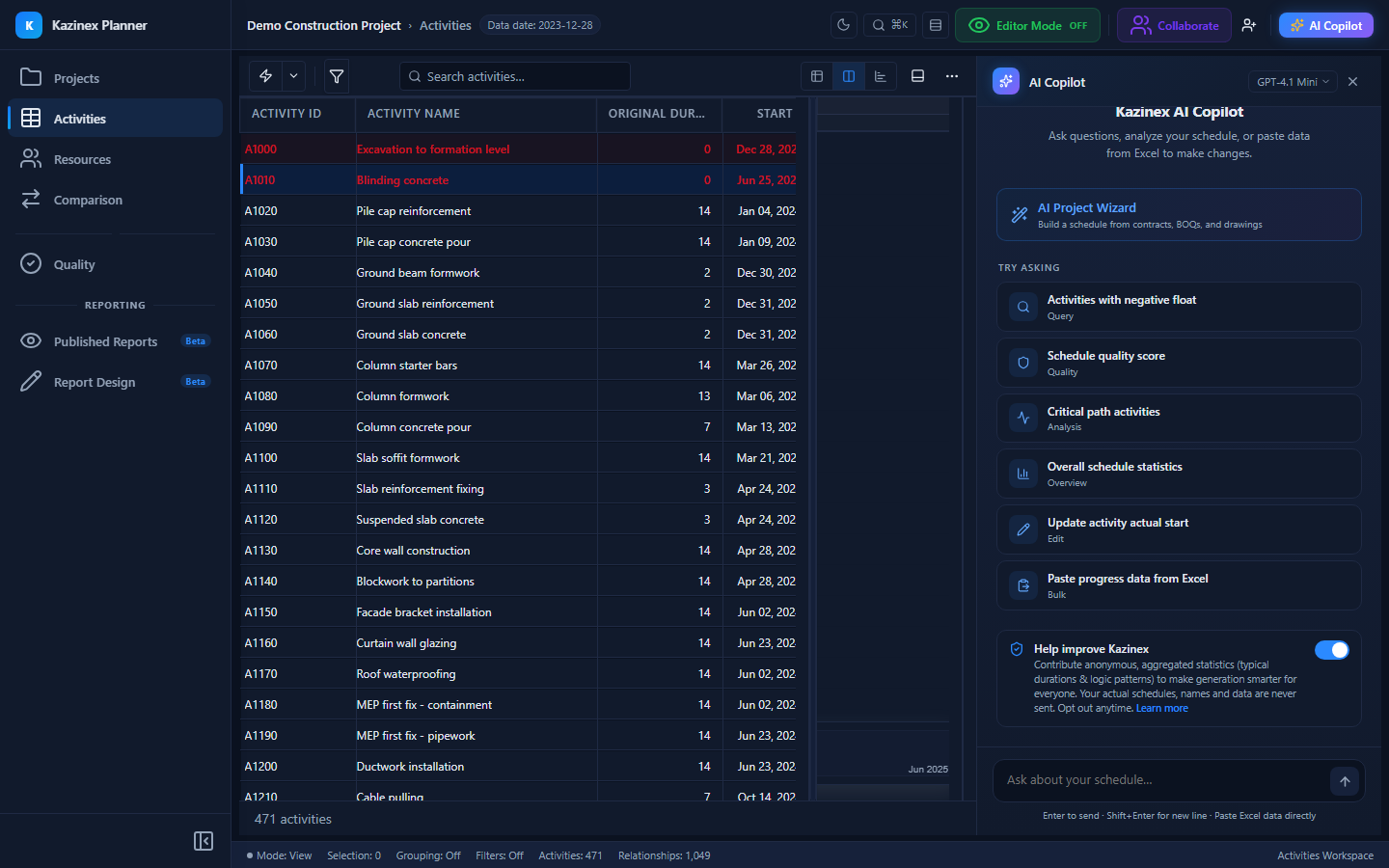
- Type: "Switch to dark theme"
- Press Enter.
- The entire interface switches to dark mode.
- Type: "Switch to light theme" to revert.
What you should see: The background, grid, Gantt chart, and Copilot panel all switch to a dark colour scheme. Light theme restores the default white background.
Step 10 — Verify Your Commands
Confirm you can control the grid entirely through the Copilot.
- Add a column, then remove it — both work via natural language.
- Apply a preset — the grid layout changes completely.
- Sort and group — the data reorganises.
- Expand/collapse — groups toggle.
- Theme — the UI switches between light and dark.
What you should see: Full control over the grid layout, organisation, and appearance without ever touching the toolbar or Column Chooser directly.
What's Next?
- AI Copilot — Narratives and DOCX Export — generate professional reports
- AI Copilot — Baseline Variance Analysis — analyse baseline drift
- Grid & App Features Reference — full documentation on all grid tools
Troubleshooting
| Issue | Solution |
|---|---|
| Column not found | The Copilot uses fuzzy matching. Try a different name or abbreviation. For example, "TF" matches "Total Float". |
| Preset not applying | Ensure you use the exact preset name. Type "List available column presets" first to see the correct names. |
| Grouping produces empty groups | Some WBS levels may have no activities. Try grouping by a lower level or by Activity Code. |
| Sort order seems wrong | Confirm whether you asked for ascending or descending. "Ascending" puts the smallest values first. |
| Theme command not recognised | Use "dark theme", "light theme", or "auto theme" as the command. |