Upload and Mark a Baseline
Time: ~10 minutes Level: Beginner Applies to: Free · Pro · Enterprise
What You Will Learn
By the end of this tutorial, you will be able to:
- Upload two schedule versions (an older baseline and a newer update)
- Mark one schedule as Baseline and the other as Current
- See baseline badges on your project cards
- Open the Comparison tab to view the Change Summary dashboard
Prerequisites
- A Kazinex account (any tier)
- Two schedule files representing different periods of the same project (for example, a January update and a February update)
- Familiarity with uploading files (see Your First 15 Minutes)
Step 1 — Upload Both Schedule Files
First, import both schedule versions into Kazinex.
- Click the Import button in the toolbar.
- Upload your older schedule file (for example,
Project_Jan.xer). - Walk through the Import Wizard and click Import on the final step.
- Repeat the process for your newer schedule file (for example,
Project_Feb.xer).
What you should see: Two project cards in the Projects tab, one for each schedule period.
Step 2 — Mark the Older Schedule as Baseline
The baseline is your reference point — the schedule you compare against.
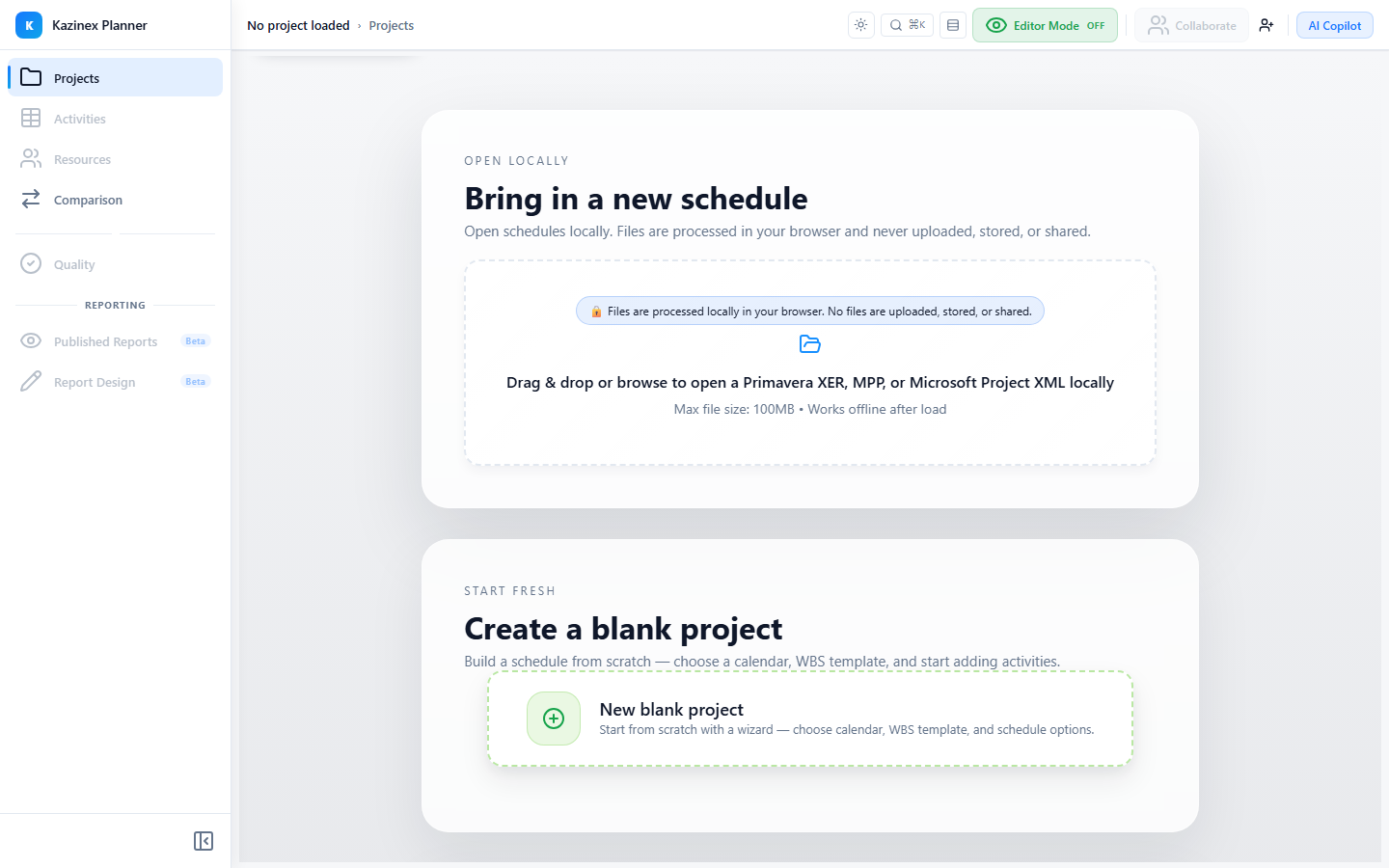
- Open the Projects tab.
- Find the project card for the older schedule (for example, January).
- Click the actions menu (⋯) on the card.
- Select Mark as Baseline.
What you should see: A blue Baseline badge appears on the project card.
Step 3 — Mark the Newer Schedule as Current
The current schedule is the latest update you want to analyse.
- Find the project card for the newer schedule (for example, February).
- Click the actions menu (⋯) on the card.
- Select Mark as Current.
What you should see: A green Current badge appears on the project card. Both cards now display their respective badges side by side in the Projects tab.
Step 4 — Open the Current Schedule
Open the current schedule to see it with baseline context.
- Click the Current-badged project card to open the schedule.
- Navigate to the Activities tab.
- Look at the Gantt chart — baseline bars appear behind the current bars when enabled.
What you should see: The Gantt chart shows current task bars in the foreground. If baseline bars are toggled on in Gantt settings, lighter bars appear behind them representing the original baseline dates.
Step 5 — Open the Comparison Tab
The Comparison tab shows exactly what changed between the baseline and current schedules.
- Click the Comparison tab in the main navigation.
- If this is your first comparison, click Run Comparison.
- Wait for the comparison engine to process the two schedules.
What you should see: The Change Summary dashboard appears, showing cards for total changes, cost delta, labour, material, and non-labour differences. Each card displays a count or value.
Step 6 — Review the Change Summary
The summary gives you a high-level overview of what moved.
- Note the Added count — activities that exist in the current schedule but not in the baseline.
- Note the Deleted count — activities removed since the baseline.
- Note the Modified count — activities that exist in both but have changed field values.
- Look at the cost and resource delta cards for financial and resource impacts.
What you should see: A dashboard with clearly labelled cards showing the magnitude of change between your two schedule periods.
Step 7 — Verify Your Work
Confirm you have a working baseline and current setup.
- Return to the Projects tab. You should see two cards — one with a Baseline badge and one with a Current badge.
- Open the Comparison tab. The Change Summary dashboard displays results.
- Verify that the Added, Deleted, and Modified counts look reasonable for the changes you expect.
What you should see: A complete baseline/current setup with comparison results ready for deeper analysis.
What's Next?
- Compare Two Schedule Periods — drill into changes at the activity, WBS, and activity code levels
- AI Copilot — Baseline Variance Analysis — use the AI to analyse baseline drift
- Baseline Comparison Reference — learn about all comparison tools
Troubleshooting
| Issue | Solution |
|---|---|
| "Mark as Baseline" option is greyed out | You may already have another schedule marked as baseline. Unmark the existing baseline first. |
| Comparison tab shows no results | Ensure both a Baseline and Current schedule are marked. Click Run Comparison if prompted. |
| Badge does not appear on the card | Refresh the Projects tab. If the issue persists, re-mark the schedule. |
| Baseline bars not visible in Gantt | Open Gantt Settings and enable Show Baseline Bars. |