Master the AI Copilot
Time: ~20 minutes Level: Beginner Applies to: Free · Pro · Enterprise
What You Will Learn
By the end of this tutorial, you will be able to:
- Open the AI Copilot panel and navigate the interface
- Ask natural language questions about your schedule
- Request schedule modifications and review confirmation cards
- Generate a narrative report
- Switch between AI models
- Start a new conversation
Prerequisites
- A Kazinex account (any tier — some tools require Pro+)
- A schedule loaded with activities (see Your First 15 Minutes)
Step 1 — Open the AI Copilot Panel
Launch the AI assistant.
- Press Ctrl+Shift+I, or click the sparkles icon (✨) in the toolbar.
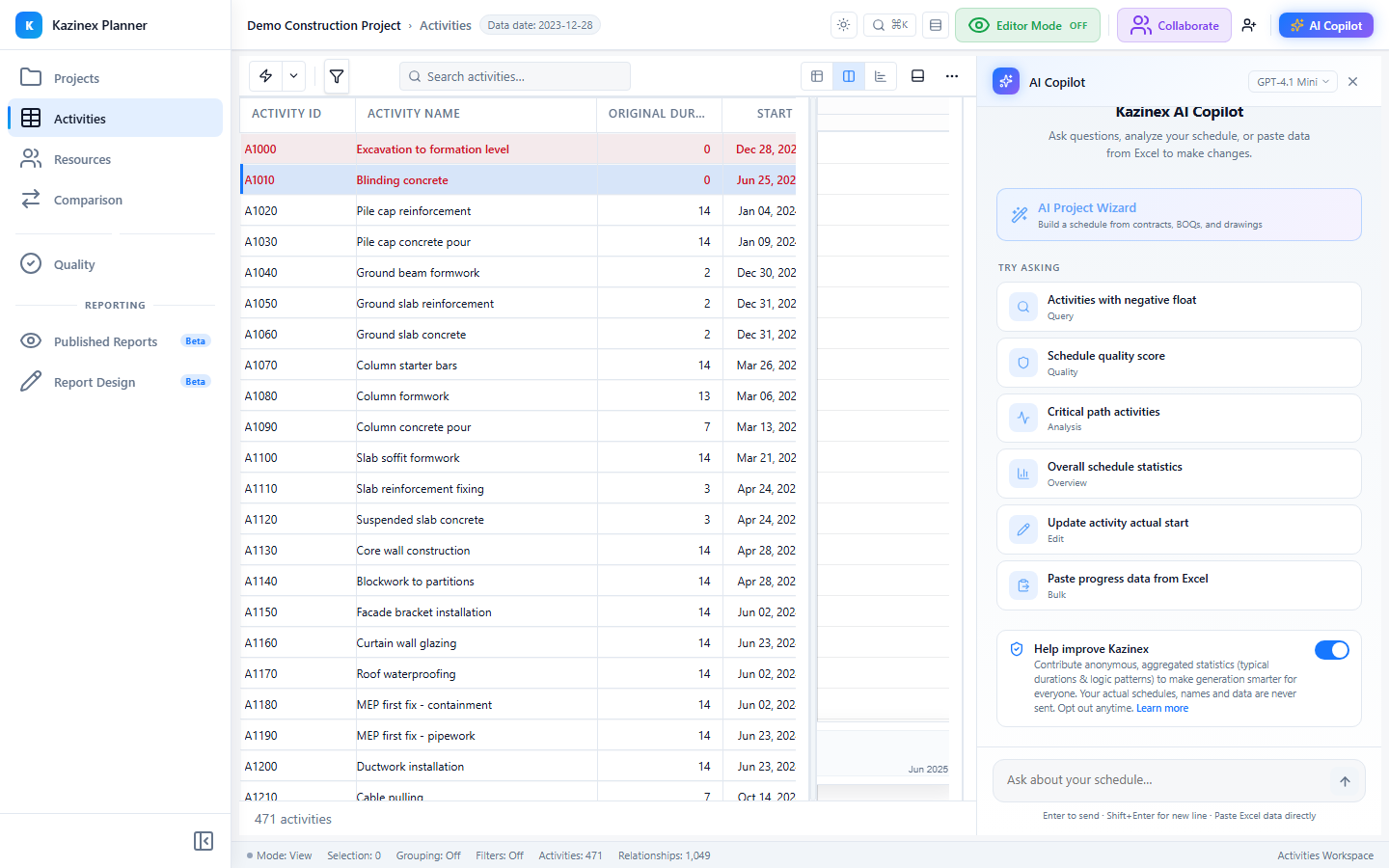
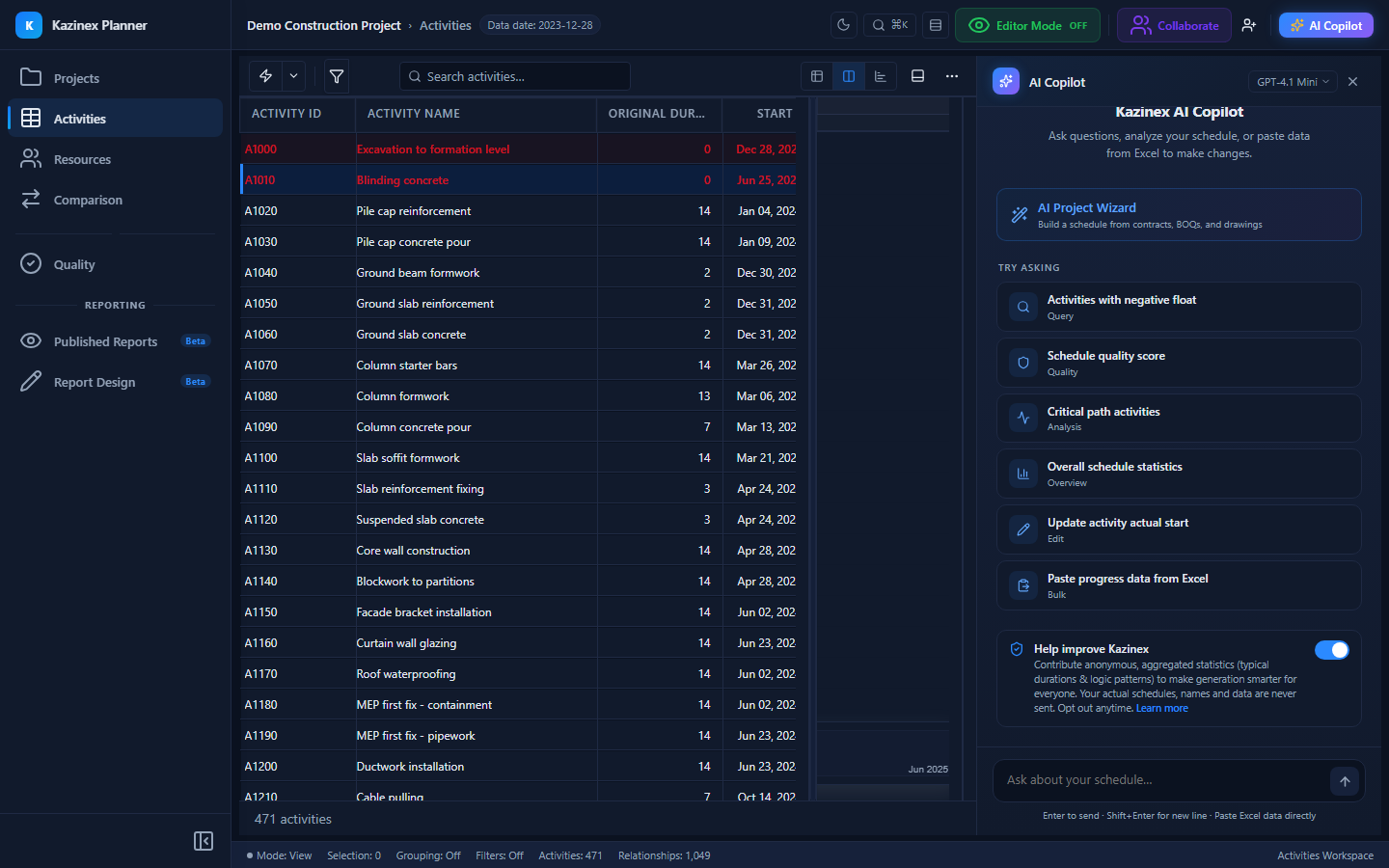
- The Copilot panel opens on the right side of the screen.
- A welcome screen appears with 6 suggested prompts.
What you should see: A chat-style panel with a text input at the bottom. The welcome screen shows prompt suggestions such as "Give me an overview of this schedule" and "Show the critical path".
Step 2 — Ask for a Schedule Overview
Get a high-level summary of your loaded schedule.
- Type: "Give me an overview of this schedule"
- Press Enter or click the send button.
- The Copilot processes your request and returns schedule statistics.
What you should see: A response containing the total number of activities, the project start and finish dates, activity status breakdown (Not Started, In Progress, Completed), and basic schedule metrics.
Step 3 — Query the Critical Path
Ask about the most important activities in the schedule.
- Type: "Show activities on the critical path"
- Press Enter.
- The Copilot returns a table of critical activities.
What you should see: A formatted table listing critical path activities with their Activity ID, Activity Name, Duration, Early Start, Early Finish, and Total Float (which should be 0 for critical activities).
Step 4 — Ask About Quality
Check the schedule health without leaving the Copilot.
- Type: "What's the quality score?"
- The Copilot retrieves and displays the quality check results.
What you should see: A summary showing the overall quality score, grade, and a breakdown by category (Logic, Duration, Constraints, etc.) with pass/fail counts.
Step 5 — Explore the WBS Structure
Ask the Copilot to display your work breakdown structure.
- Type: "Show me the WBS structure"
- The Copilot returns the full WBS hierarchy.
What you should see: A tree-like display showing all WBS levels with their names and the count of activities under each node.
Step 6 — Run a Custom Query
Ask a specific analytical question.
- Type: "What are the top 10 activities with the most float?"
- The Copilot queries your schedule and returns a sorted list.
What you should see: A table of 10 activities sorted by Total Float in descending order. Activities with the most scheduling flexibility appear first.
Step 7 — Generate a Narrative Report
Ask the Copilot to write a professional schedule narrative.
- Type: "Write a schedule narrative report"
- Wait for the Copilot to generate the report (this may take 10-15 seconds).
What you should see: A multi-paragraph narrative covering: project overview, WBS structure, critical path analysis, float distribution, progress status, resource summary, and milestone outlook. The narrative reads as a professional consultant report.
Step 8 — Request a Schedule Modification
Try a write command to change the schedule.
- Type: "Change the duration of [Activity Name] to 15 days" (replace [Activity Name] with an actual activity in your schedule).
- The Copilot processes the request.
- A Confirmation Card appears before the change is applied.
What you should see: A coloured card showing the operation type, the activity affected, the old duration, the new duration, the risk level (Low/Medium/High/Critical), and two buttons: Apply and Cancel.
Step 9 — Review and Apply the Confirmation
Decide whether to accept the change.
- Read the Confirmation Card details: operation, affected data, risk level.
- Click Apply to accept the change.
- The activity duration updates in the grid.
- If you change your mind, press Ctrl+Z to undo the change.
What you should see: The grid updates immediately after clicking Apply. A success message appears in the Copilot chat. The change is also recorded in the undo history.
Step 10 — Switch AI Models
Try different models for different tasks.
- Click the model selector dropdown in the Copilot header.
- You see available models: GPT-4.1 Mini, DeepSeek V3, GPT-4.1, GPT-4o, Claude Sonnet 4.
- Select a different model (for example, switch from GPT-4.1 Mini to GPT-4.1).
- Ask the same question again and compare the response quality.
What you should see: A dropdown list of AI models. Selecting a different model changes the underlying engine. GPT-4.1 Mini is faster and cheaper; GPT-4.1 and Claude Sonnet 4 provide more detailed responses.
Step 11 — Start a New Conversation
Clear the chat history and begin fresh.
- Click the refresh icon (🔄) in the Copilot header.
- The chat clears and the welcome screen reappears.
- Previous conversations are saved in the conversation history.
What you should see: An empty chat panel with the welcome screen and suggested prompts. Your previous conversation is archived and accessible from the history.
Step 12 — Verify Your Skills
Confirm you can use all core Copilot features.
- You can open and close the Copilot panel.
- You can ask read-only questions and get data tables.
- You can request modifications and review confirmation cards.
- You can generate narrative reports.
- You can switch models and start new conversations.
What you should see: Confidence in using the AI Copilot for querying, modifying, and reporting on your schedule using natural language.
What's Next?
- AI Copilot — Grid & Column Commands — control the grid layout with natural language
- AI Copilot — Narratives and DOCX Export — generate and download professional documents
- AI Copilot Overview — full reference documentation
Troubleshooting
| Issue | Solution |
|---|---|
| Copilot panel does not open | Try Ctrl+Shift+I. If the keyboard shortcut does not work, click the sparkles icon in the toolbar. |
| Copilot says "No schedule loaded" | Open a schedule from the Projects tab before using the Copilot. The AI needs schedule context to answer questions. |
| Response is slow | Complex queries like narrative generation take 10-15 seconds. Larger models (GPT-4.1, Claude Sonnet 4) are slower but more capable. |
| Confirmation Card not appearing | Write commands always show a confirmation card. If it did not appear, the Copilot may have interpreted your request as a read query. Rephrase with a clear action verb ("Change", "Set", "Delete"). |
| Token limit warning | Long conversations may approach the token limit. Start a new conversation to reset the context window. |
| Model selector not available | Model switching may be restricted on lower tiers. Check your subscription level. |