Calendar Editor
Applies to: Pro · Enterprise Last updated: 27-Feb-2026
Overview
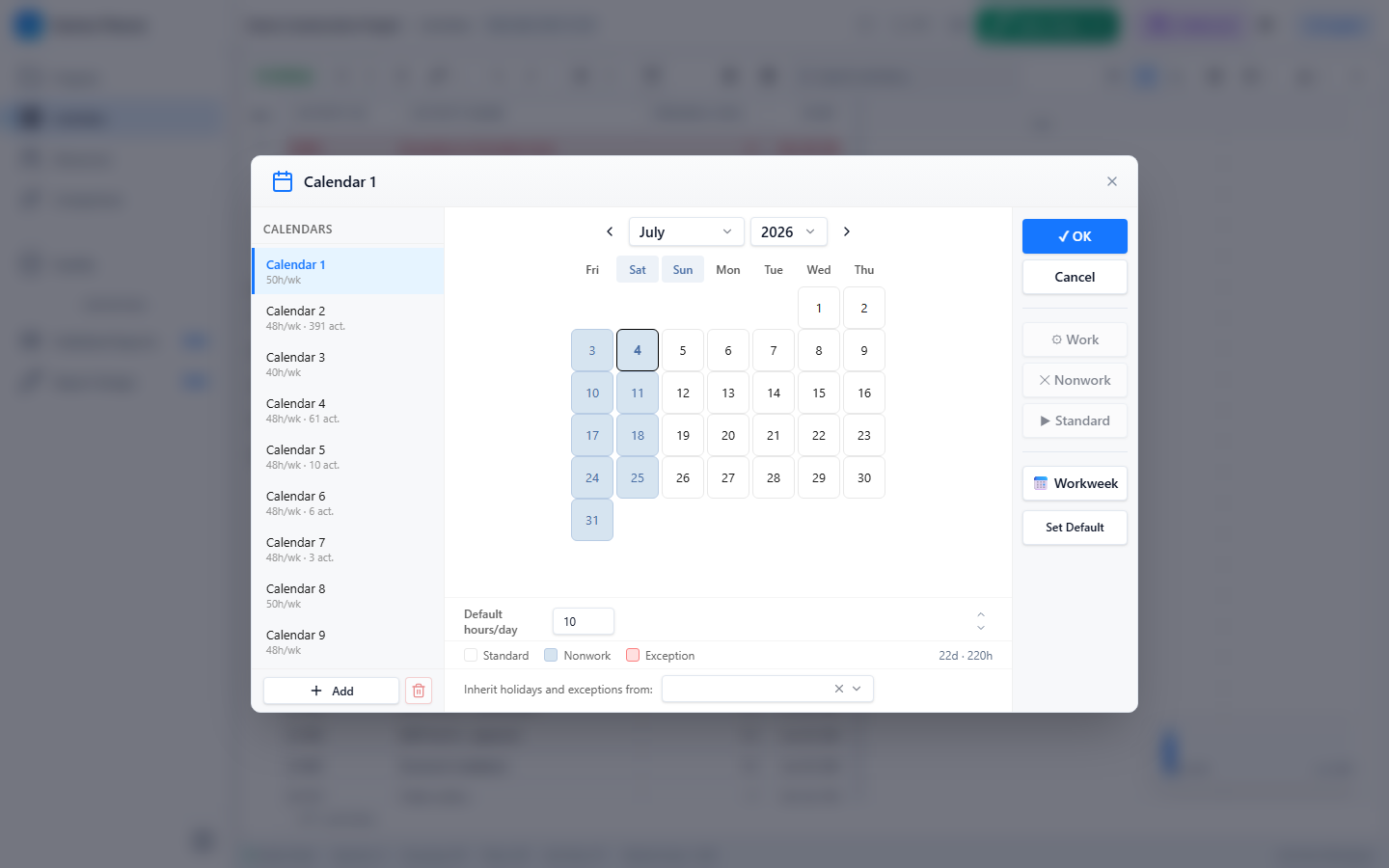
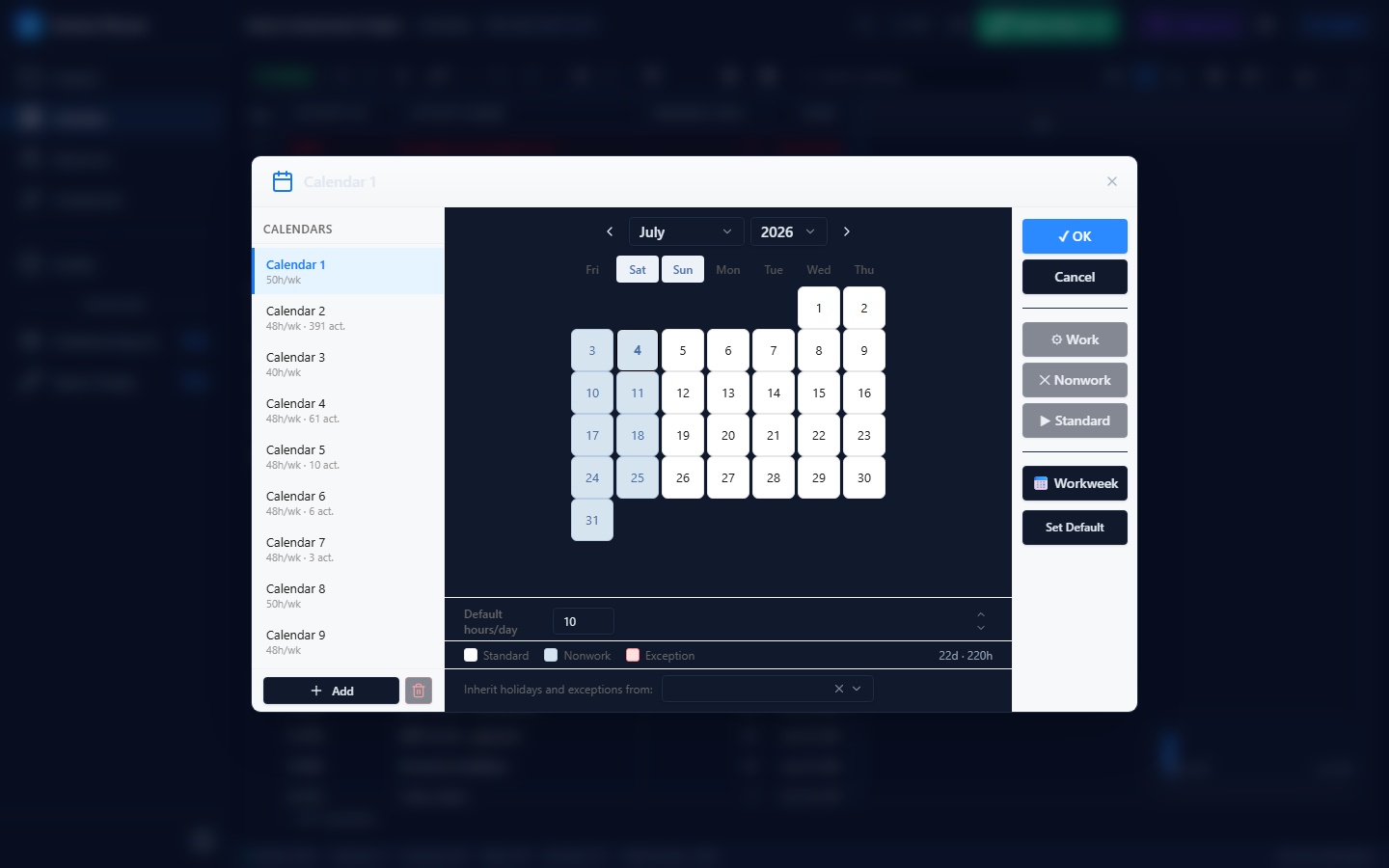
The Calendar Editor lets you define and manage project calendars. Each calendar specifies a weekly work pattern (which days and how many hours) plus date-specific exceptions (holidays, shutdowns, overtime days). The editor uses a P6-inspired layout with a calendar list, a month-view hero panel, and action controls.
Prerequisites
- Active Pro or Enterprise subscription
- Editor Mode enabled
- At least one project loaded
Opening the Calendar Editor
Open the Calendar Editor from:
- The Editor Sidebar → Calendar Editor button
- Step 2 of the New Project Wizard
Layout
The editor has three sections:
| Section | Position | Contents |
|---|---|---|
| Calendar List | Left sidebar | All project calendars with selection |
| Month View | Centre | Interactive month calendar with colour-coded days |
| Actions | Right controls | Add/rename/delete calendars, work week presets |
Day Types & Colour Coding
| Day Type | Colour | Description |
|---|---|---|
| Work Day | White (#ffffff) | Normal working day |
| Non-Work Day | Light blue (#d6e4f0) | Weekend or non-working day |
| Exception — Non-Work | Light red (#ffe0e0) | Holiday or shutdown |
| Exception — Work | Light yellow (#fff3cd) | Overtime or special work day |
The day order follows the P6 convention: Fri, Sat, Sun, Mon, Tue, Wed, Thu.
Monthly Statistics
The header bar displays statistics for the currently viewed month:
- Work Days — number of working days
- Total Hours — sum of working hours
- Exceptions — number of exception dates
Weekly Pattern Editor
The weekly pattern defines default work hours for each day of the week.
| Day | Colour | Default (5d × 8h) |
|---|---|---|
| Sunday | Red (#f5222d) | 0h |
| Monday–Friday | Blue (#1677ff) | 8h |
| Saturday | Orange (#fa8c16) | 0h |
Enter hours per day as a number between 0 and 24. Setting 0 hours marks that day as non-work.
Work Week Presets
| Preset | Pattern | Total Hours/Week |
|---|---|---|
| 5d × 8h | Mon–Fri, 8h each | 40h |
| 6d × 8h | Mon–Sat, 8h each | 48h |
| 7d × 8h | Every day, 8h each | 56h |
| 5d × 10h | Mon–Fri, 10h each | 50h |
| 7d × 24h | Every day, 24h each | 168h |
Click a preset button to instantly apply that pattern.
Exception Editor
Exceptions override the weekly pattern for specific dates.
| Field | Description |
|---|---|
| Date | Select the exception date via date picker |
| Hours | Working hours for that date (0 = holiday) |
Exceptions appear in a table below the monthly view.
- 0 hours creates a holiday (non-work exception, shown in red on the calendar)
- Any positive hours creates a work exception (shown in yellow on the calendar)
Calendar Preview
The preview panel shows a mini month-view (32×32px cells) with colour coding:
| Colour | Meaning |
|---|---|
Red background (#fff1f0) | Exception holiday |
Orange background (#fff7e6) | Modified work hours |
Blue background (#e6f4ff) | Normal work day |
Grey background (#f5f5f5) | Non-work day |
Managing Calendars
Add a Calendar
- Click Add Calendar
- Enter a name for the new calendar
- Configure the weekly pattern and exceptions
Delete a Calendar
Select a calendar from the list and click Delete. You cannot delete a calendar that is assigned to activities.
Commands
All calendar operations support undo/redo:
| Command | Description |
|---|---|
AddCalendarCommand | Creates a new calendar |
UpdateCalendarCommand | Modifies weekly pattern |
DeleteCalendarCommand | Removes a calendar |
AddCalendarExceptionCommand | Adds a date exception |
DeleteCalendarExceptionCommand | Removes a date exception |
Tips & Best Practices
- Create separate calendars for different work shifts (e.g., "Day Shift 5×8", "7-Day Shutdown")
- Always add public holidays as non-work exceptions before running CPM
- Use the 7d × 10h preset for turnaround/shutdown projects
- The P6-style day order (Fri–Thu) matches Oracle Primavera P6 for easy comparison
Related Documentation
- Create New Project — Calendar selection during project setup
- Schedule Calculation — How calendars affect the CPM engine
- Schedule Options — Default calendar and lag calendar settings