Project Properties
Applies to: All tiers (read-only in Free) · Editable in Pro · Enterprise Last updated: 27-Feb-2026
Overview
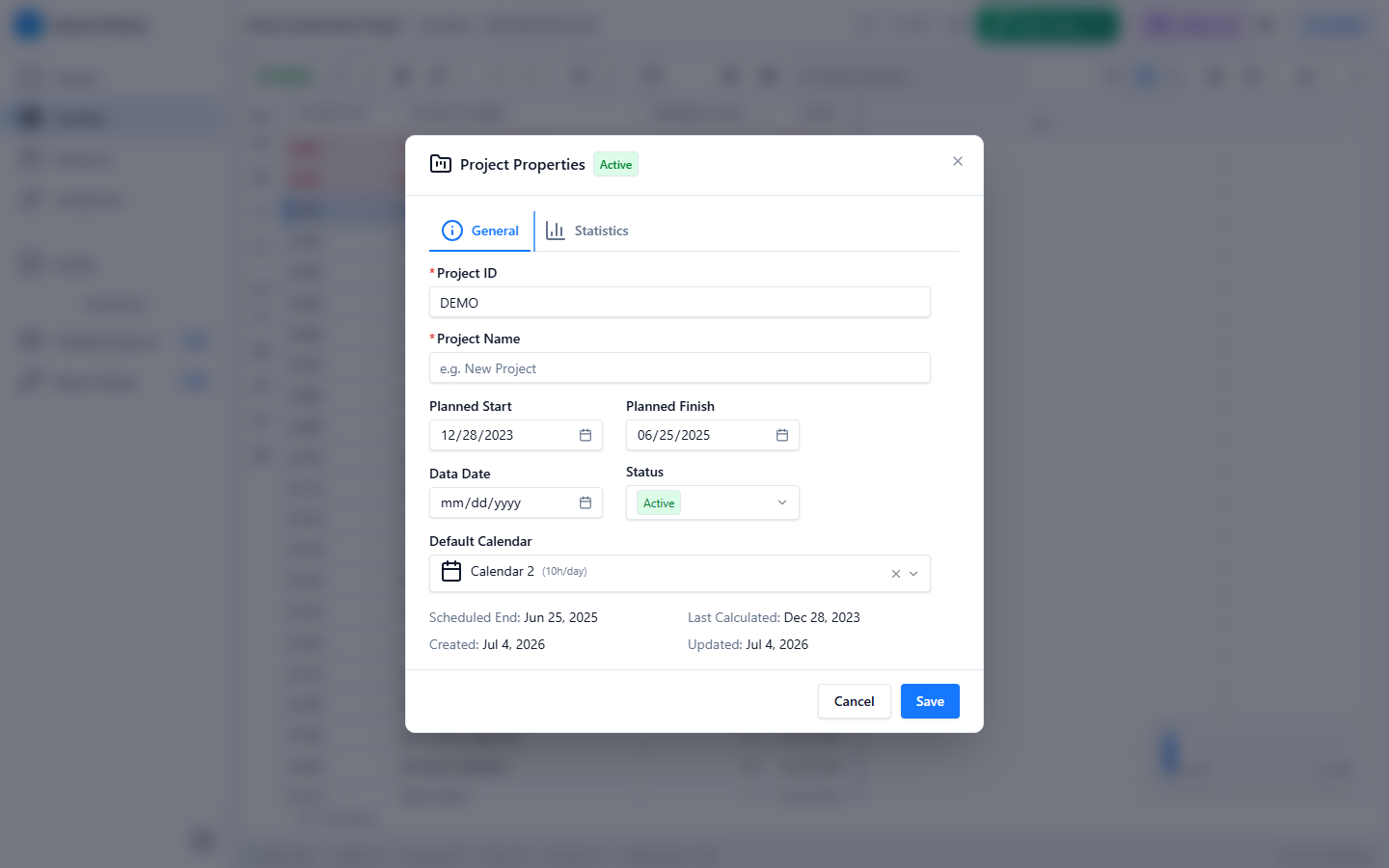
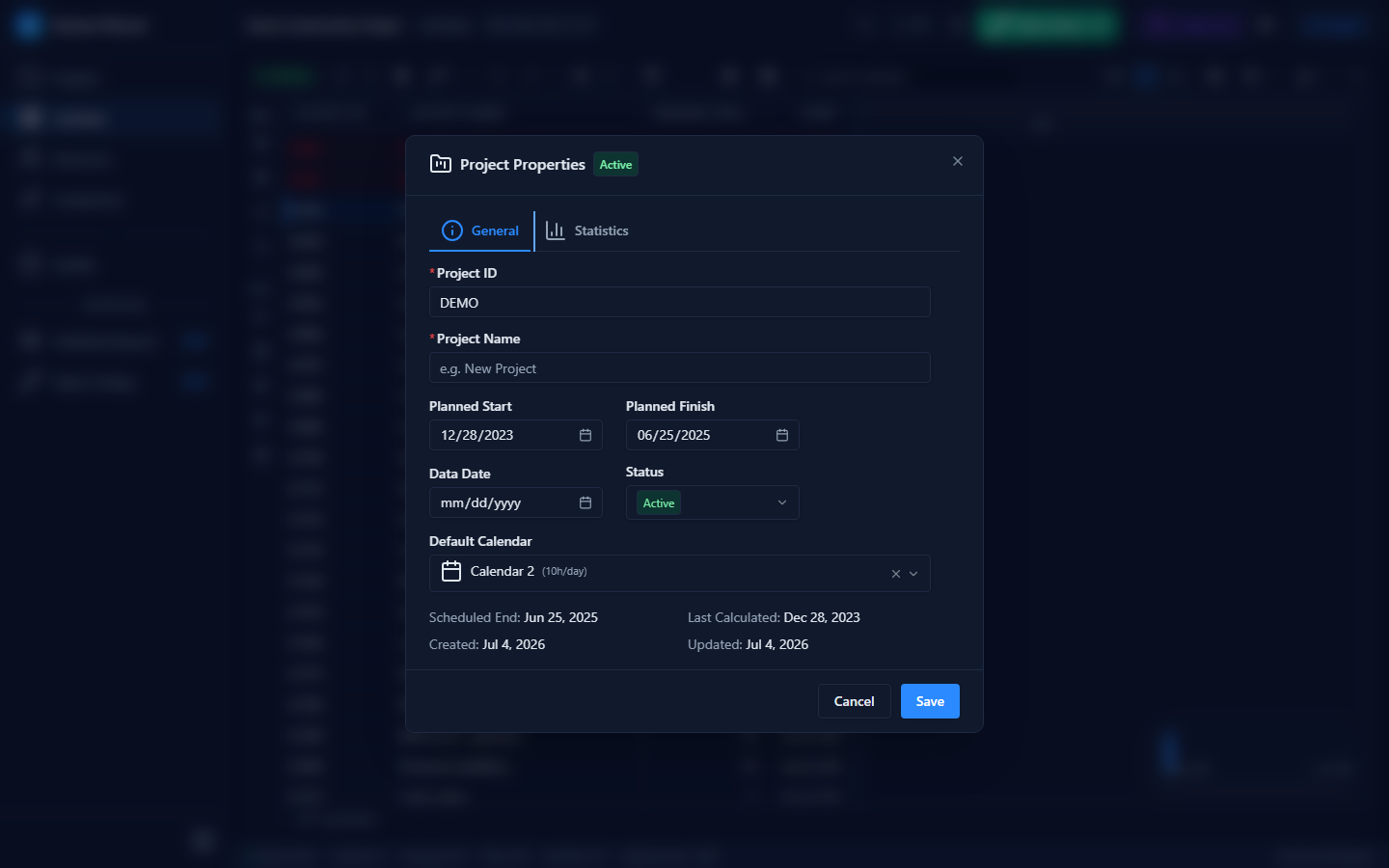
The Project Properties dialog displays and lets you edit project-level metadata. It has two tabs: General for core project fields, and Statistics for read-only counts and breakdowns.
Prerequisites
- At least one project loaded
- Editor Mode enabled for editing (read-only otherwise)
Opening Project Properties
Open from:
- Editor Sidebar or Editor Context Menu → Project Properties
- Grid Toolbar → Project menu → Properties
General Tab
Editable Fields
| Field | Description | Constraints |
|---|---|---|
| Project ID | Short alphanumeric identifier | Required, max 30 characters |
| Project Name | Full descriptive name | Required, max 120 characters |
| Planned Start | Project earliest start date | Date picker (DD-MMM-YYYY) |
| Planned Finish | Project latest finish date | Date picker |
| Data Date | Schedule status / cut-off date | Date picker |
| Status | Project status | Select: Active (green), Inactive (default), Complete (blue) |
| Default Calendar | Calendar used for activities without an assigned calendar | Searchable select from project calendars |
Read-Only Audit Fields
| Field | Description |
|---|---|
| Scheduled End | Last calculated project finish date |
| Last Calculated | Timestamp of last CPM run |
| Created | Project creation date |
| Updated | Last modification date |
All edits use the UpdateProjectCommand and are fully reversible via Undo & Redo.
Statistics Tab
Project Counts
| Metric | Description |
|---|---|
| Activities | Total number of activities |
| WBS Nodes | Total number of WBS elements |
| Relationships | Total number of dependencies |
| Resources | Total number of defined resources |
| Assignments | Total number of resource assignments |
| Calendars | Total number of project calendars |
Activity Status Breakdown
| Status | Description |
|---|---|
| Not Started | Activities that have not begun |
| In Progress | Activities currently being worked |
| Complete | Activities that are finished |
Tips & Best Practices
- Keep the Data Date current — it drives the forward pass starting point for in-progress activities
- Set the Default Calendar before adding activities to ensure consistent scheduling
- Review the Statistics tab periodically to check schedule health at a glance
Related Documentation
- Schedule Options — Detailed scheduling parameters
- Schedule Calculation — Run the CPM engine
- Calendar Editor — Manage project calendars