Relationship Editor
Applies to: Pro · Enterprise Last updated: 27-Feb-2026
Overview
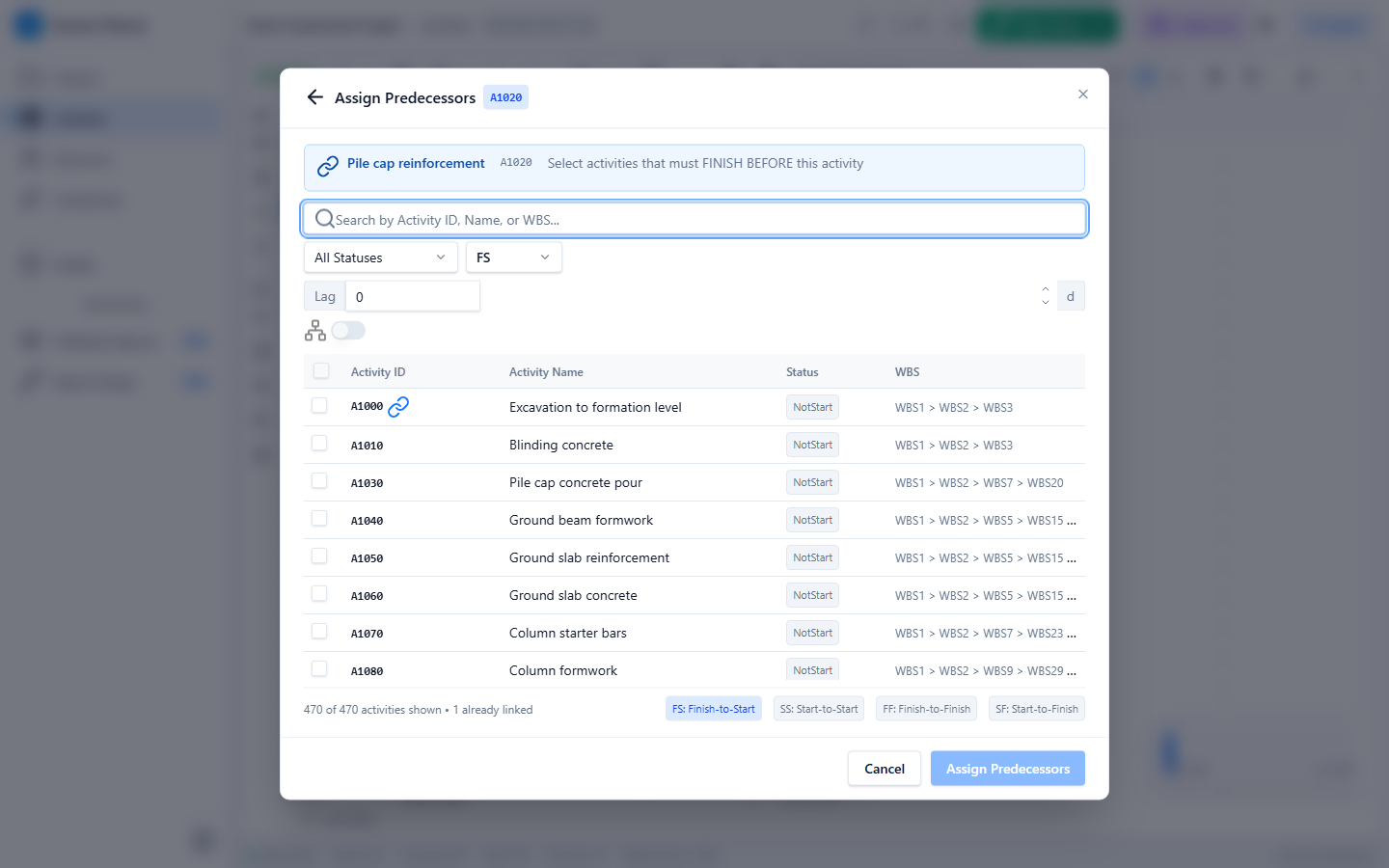
The Assign Relationship Dialog lets you create dependencies between activities. Select a source activity, choose predecessor or successor direction, pick one or more target activities, set the relationship type and lag, then create the dependencies in a single action. The dialog supports batch creation, WBS tree grouping, and validates against circular dependencies.
Prerequisites
- Active Pro or Enterprise subscription
- Editor Mode enabled
- At least one project with two or more activities
Opening the Relationship Editor
Open the dialog from:
- Editor Context Menu → Add Predecessor… or Add Successor…
- Activity Details Panel → Predecessors or Successors tab → Add button
- Gantt Chart → Drag to Link creates relationships directly
Dialog Layout
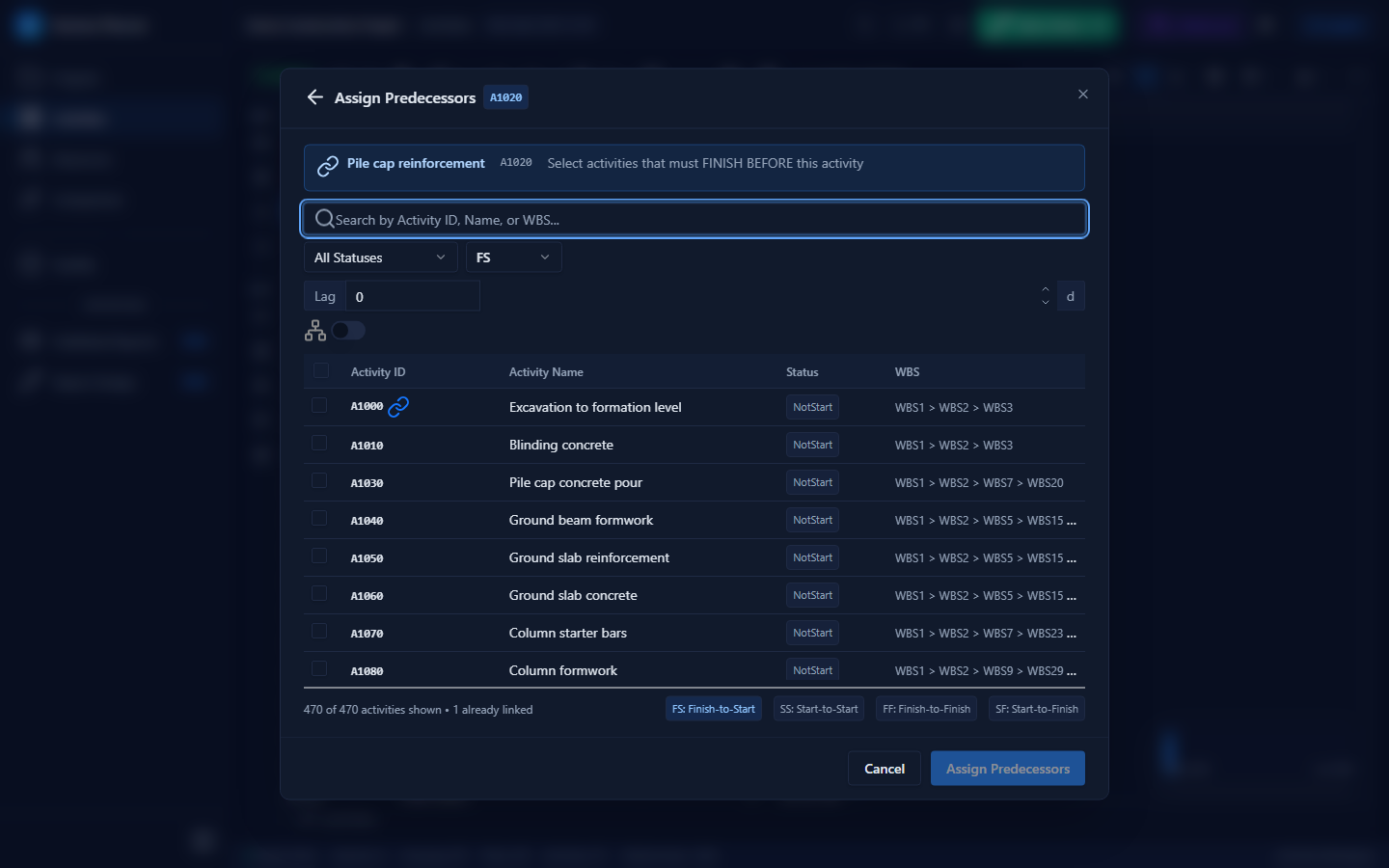
The dialog anchors to a source activity and opens in either Predecessor or Successor direction.
Relationship Types
| Code | Type | Description |
|---|---|---|
| FS | Finish-to-Start | Successor starts after predecessor finishes (most common) |
| SS | Start-to-Start | Successor starts when predecessor starts |
| FF | Finish-to-Finish | Successor finishes when predecessor finishes |
| SF | Start-to-Finish | Successor finishes when predecessor starts (rare) |
The default type is FS (Finish-to-Start).
Lag
Enter a lag value in hours. The value can be:
- Positive — adds a delay between the linked activities
- Zero — no delay (default)
- Negative — creates a lead (overlap) between activities
Lag is converted to hours internally using the calendar's hours-per-day setting.
Activity Selection
Search & Filter
- Text search — filter by Activity ID or Activity Name (uses deferred value for performance)
- Status filter — filter by activity status (Not Started, In Progress, Complete)
- WBS grouping — toggle to group activities in a WBS tree hierarchy for easier navigation
Grid Columns
| Column | Width | Description |
|---|---|---|
| Activity ID | 160px | Unique activity identifier |
| Activity Name | 280px | Descriptive activity name |
| Status | 110px | Current activity status |
| WBS Path | 200px | Full WBS hierarchy path |
All columns are resizable via drag handles.
Multi-Select
Select multiple target activities to create relationships in batch. Selected rows are highlighted and all receive the same relationship type and lag value.
Validation
The editor validates relationships before creation:
| Check | Description |
|---|---|
| Self-reference | Cannot create a relationship from an activity to itself |
| Duplicate | Cannot create a relationship that already exists |
| Circular dependency | Cannot create a relationship that would form a logic loop |
If validation fails, the dialog shows an error message and prevents creation.
Batch Creation
When multiple activities are selected, clicking OK creates all relationships in a single BatchCommand. This means:
- All relationships are created atomically
- A single Undo reverses the entire batch
- Progress is immediate — no need to create relationships one at a time
Tips & Best Practices
- Use FS (Finish-to-Start) for most dependencies — it represents the most natural logic flow
- Avoid SF (Start-to-Finish) relationships unless you have a specific scheduling need
- Keep lags to a minimum — excessive lags are flagged by the Lags quality check
- Use negative lags (leads) sparingly — they are flagged by the Leads quality check
- Enable WBS grouping when working with large schedules to find activities faster
Related Documentation
- Gantt Drag Interactions — Create relationships by dragging between bars
- Logic Checks — Quality checks for missing logic, lags, and leads
- Schedule Calculation — How relationships drive the CPM engine