UDF Editor (User Defined Fields)
Applies to: Free · Pro · Enterprise
Last updated: 17-Jul-2025
Overview
User Defined Fields (UDFs) let you add custom data columns to your schedule — text notes, numeric scores, cost budgets, date targets, or status indicators. The UDF Editor provides full CRUD operations for UDF types and a table-based interface for editing values across activities.
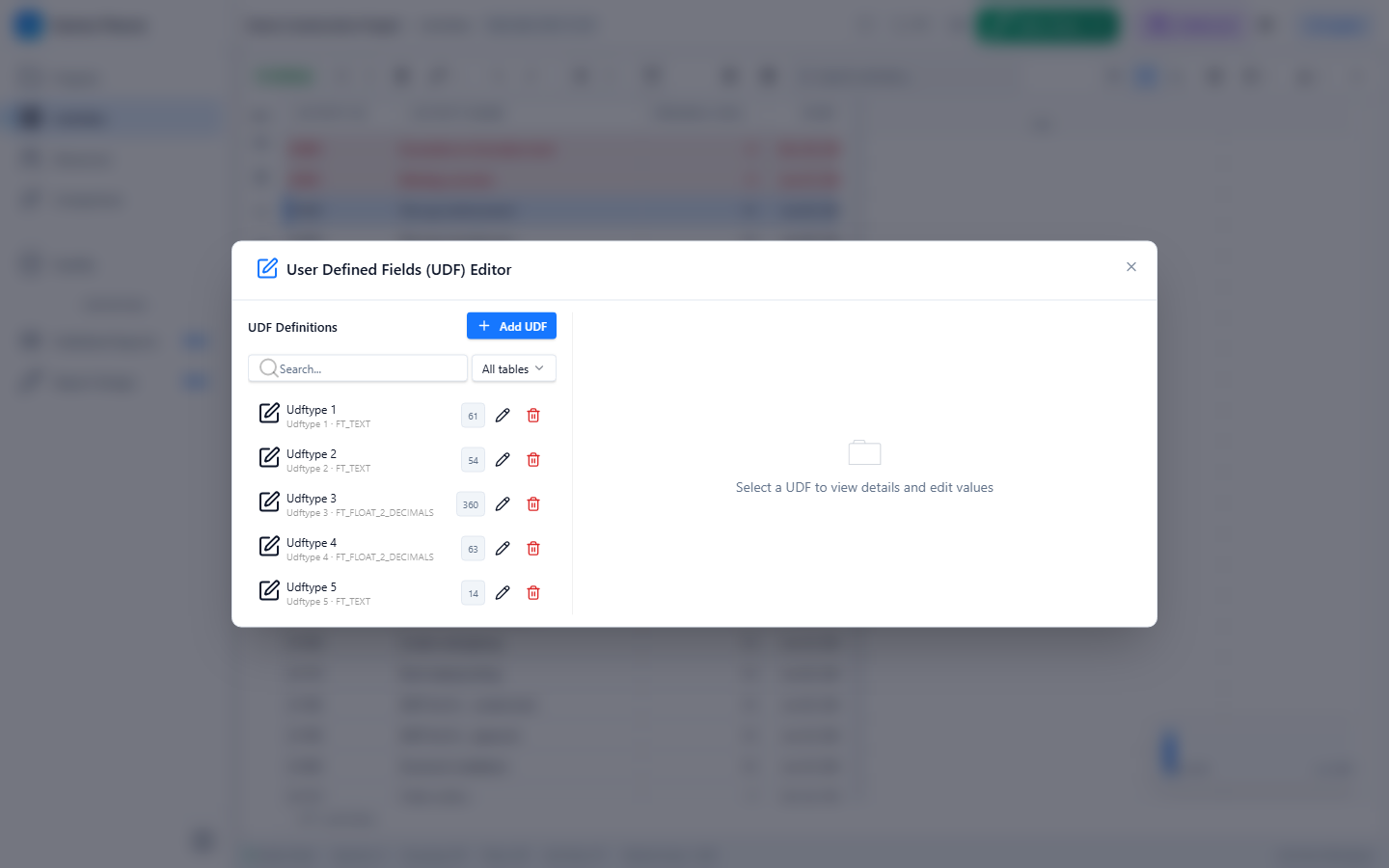
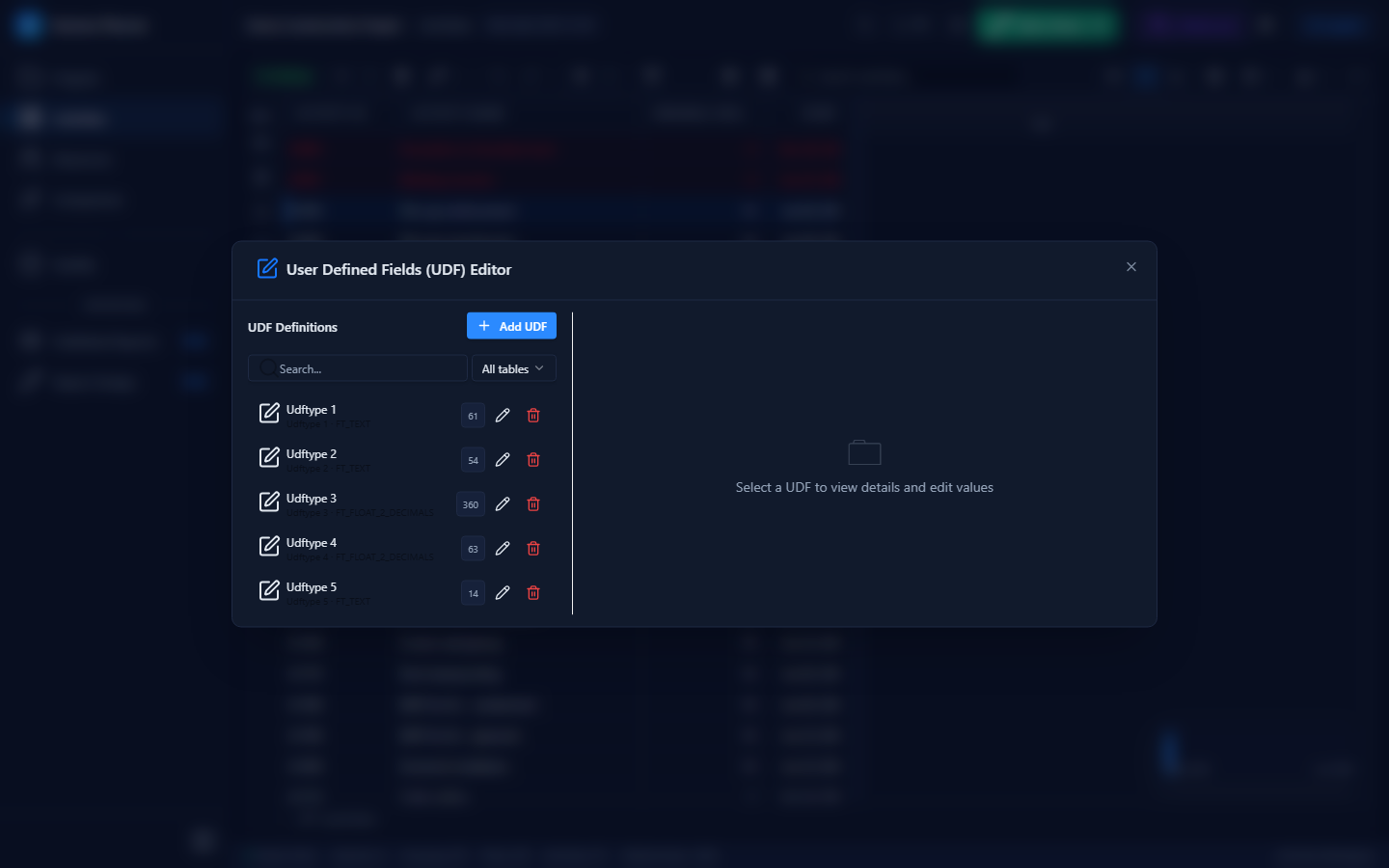
Opening the UDF Editor
- Open your schedule in the Editor tabs.
- Click User Fields in the editor toolbar, or use the menu Editor → UDF Editor.
- The UDF Editor dialog opens.
Layout
| Pane | Width | Content |
|---|---|---|
| Left | 320 px | UDF type list with search and table filter |
| Right | Flexible | UDF details and value editing table |
Data Types
Kazinex supports 8 UDF data types, each with a specialised editor:
| Type | Icon | Colour | Editor Widget |
|---|---|---|---|
| Text | String icon | Blue | Text input |
| Integer | Number icon | Orange | Number input (whole numbers only) |
| Float | Number icon | Orange | Number input (2 decimal places) |
| Money | Dollar icon | Gold | Number input with $ prefix |
| Start Date | Calendar icon | Green | Date picker |
| Finish Date | Calendar icon | Green | Date picker |
| Indicator | Bulb icon | Purple | Dropdown: 🟢 Green, 🟡 Yellow, 🔴 Red, 🔵 Blue, ⚪ None |
| Code | Code icon | Cyan | Text input |
Table Scopes
Each UDF type is scoped to a specific entity type:
| Scope | Description | Value Editing |
|---|---|---|
| TASK (Activity) | Values on individual activities | Full editing supported |
| PROJWBS (WBS) | Values on WBS nodes | View only |
| RSRC (Resource) | Values on resources | View only |
| PROJECT | Values on the project | View only |
Activity-scoped UDFs (TASK) are the most common and support full value editing in the editor. Other scopes display a notice: "This UDF applies to [scope] — activity editing not available."
Managing UDF Types
Creating a UDF Type
- Click the Add button in the left pane.
- Fill in the inline form:
- Internal Name — technical identifier (e.g.,
custom_priority) - Display Label — human-readable name (e.g., "Priority Rating")
- Table — scope dropdown: Activity, WBS, Resource, Project
- Data Type — dropdown with type icons (Text, Integer, Float, Money, Start Date, Finish Date, Indicator, Code)
- Internal Name — technical identifier (e.g.,
- Confirm to create the UDF type.
Editing a UDF Type
- Select a UDF type in the list.
- Click the Edit button.
- Modify the internal name or display label.
- Confirm the change.
Deleting a UDF Type
- Select a UDF type.
- Click the Delete button.
- Confirm: "Delete this UDF and all its values?"
Deleting a UDF type removes all associated values from all entities. This action is undoable.
UDF Type List Display
Each UDF type in the list shows:
| Element | Description |
|---|---|
| Type icon | Coloured by data type |
| Display label | Primary text |
| Subtitle | Table scope + data type label |
| Value count | Number of entities with values set |
| Action buttons | Edit, Delete |
Filtering by Table Scope
Use the table filter dropdown above the UDF list to filter by scope:
- All
- Activity
- WBS
- Resource
- Project
Editing UDF Values
Select an activity-scoped UDF type to see the value editing table on the right.
Value Table Columns
| Column | Description |
|---|---|
| Activity | Task code and activity name |
| Current Value | The current value, formatted by type |
| Edit | Smart editor matching the UDF data type |
Smart Editors
Each data type gets an appropriate editor:
| Type | Editor Behaviour |
|---|---|
| Text | Standard text input — type and commit |
| Integer | Number input — whole numbers only, rejects decimals |
| Float | Number input — allows two decimal places |
| Money | Number input with $ prefix — formats as currency |
| Start Date / Finish Date | Date picker calendar — select a date visually |
| Indicator | Dropdown with coloured emoji options (🟢🟡🔴🔵⚪) |
| Code | Standard text input |
Value Formatting in the Table
| Type | Display Format | Example |
|---|---|---|
| Text | As entered | "High priority" |
| Integer | Whole number | 42 |
| Float | 2 decimal places | 3.14 |
| Money | Currency | $1,250.00 |
| Start Date / Finish Date | DD-MMM-YY | 15-Jul-25 |
| Indicator | Coloured emoji | 🟢 |
| Code | As entered | "MECH-01" |
Tips & Best Practices
- Use Indicators for status tracking — the coloured emoji indicators (🟢🟡🔴) make status visible at a glance in the Activities grid.
- Use Money type for budget fields — the $ prefix and currency formatting prevent data entry errors.
- Match P6 UDF names — if you plan to export back to XER, use the same UDF internal names as your P6 environment.
- Use the Column Chooser to add UDF columns to the Activities grid — UDFs appear in the column list after creation.
- Combine UDFs with filtering — create a UDF for risk rating, then filter activities by risk level.
Troubleshooting
| Issue | Solution |
|---|---|
| "Activity editing not available" | The UDF is scoped to WBS, Resource, or Project — not Activity. Only TASK-scoped UDFs support value editing. |
| UDF not showing in the grid | After creating a UDF, open the Column Chooser and add the new UDF column to your view. |
| Date picker showing wrong format | Dates are displayed as DD-MMM-YY. The picker returns values in the correct internal format regardless of display. |