WBS Editor
Applies to: Pro · Enterprise Last updated: 27-Feb-2026
Overview
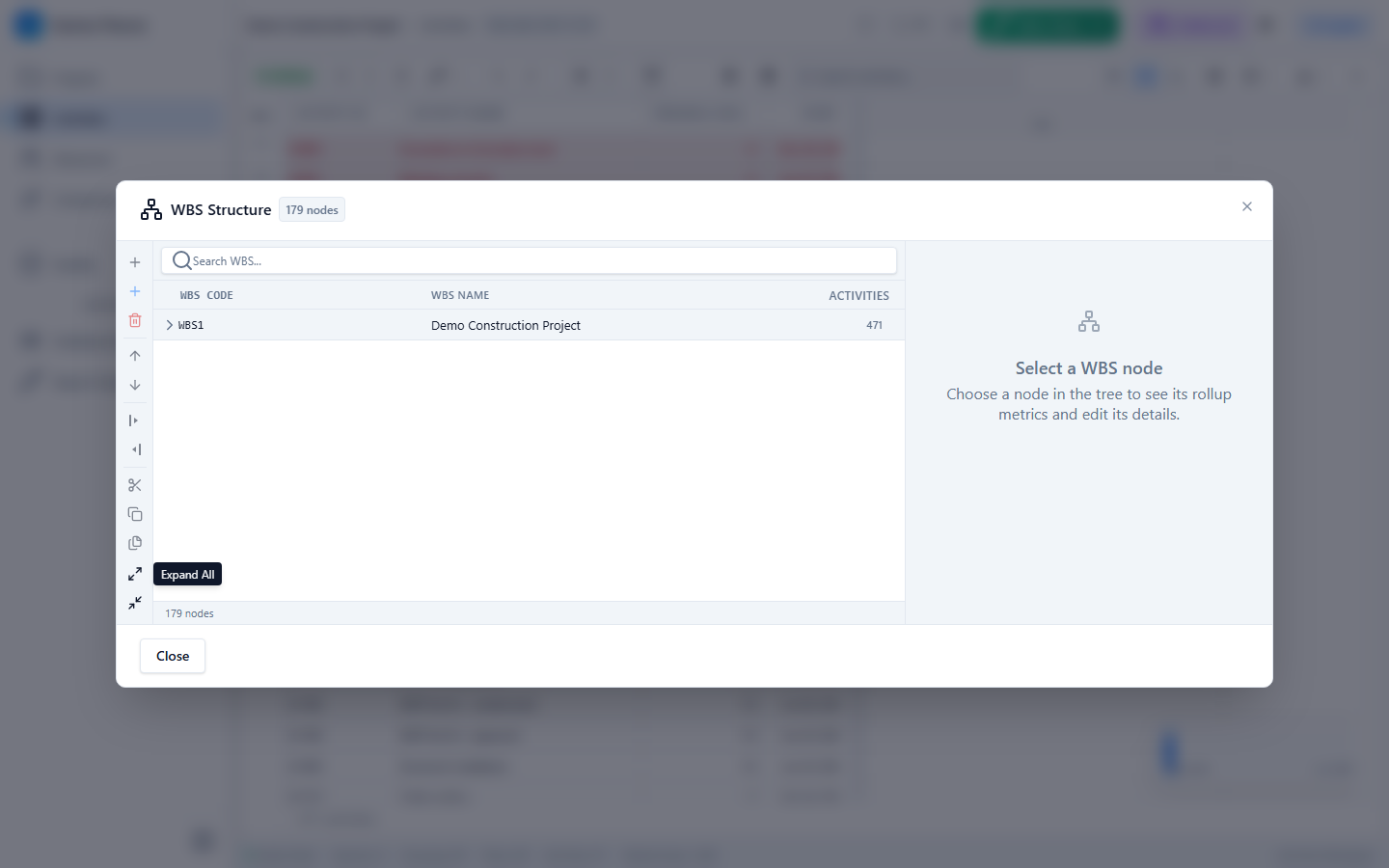
The WBS Tree Editor provides a visual, spreadsheet-like interface for managing your Work Breakdown Structure. You can add, rename, move, indent, outdent, and delete WBS nodes. The editor also supports drag-and-drop reparenting, multi-select operations, clipboard cut/copy/paste, and a live search filter.
Prerequisites
- Active Pro or Enterprise subscription
- Editor Mode enabled
- At least one project loaded
Opening the WBS Editor
Open the WBS Editor from:
- The Editor Sidebar → WBS Editor button
- The Editor Context Menu → right-click a WBS group row
Layout
The editor uses a two-pane layout:
| Pane | Width | Contents |
|---|---|---|
| Tree Pane | Flexible | WBS tree with expandable rows |
| Detail Pane | 340px fixed | Selected node properties |
Tree Columns
| Column | Width | Description |
|---|---|---|
| WBS Code | 280px | Monospace code identifier |
| WBS Name | Flexible | Descriptive name |
| Activity Count | 80px | Number of activities under this node |
Each row is 32px tall with expand/collapse indicators: ▾ (expanded), ▸ (collapsed), or · (leaf node).
WBS Operations
Adding Nodes
| Action | Shortcut | Description |
|---|---|---|
| Add Child | Ctrl+Ins | Creates a new child under the selected node |
| Add Sibling | — | Creates a peer node at the same level |
Editing Nodes
Double-click or press Enter / F2 on a selected node to enter inline editing mode. Edit the WBS Code (80px field) and WBS Name (flexible field) directly in the tree row.
Restructuring
| Action | Shortcut | Description |
|---|---|---|
| Indent → | Tab | Move the node one level deeper (becomes child of sibling above) |
| Outdent ← | Shift+Tab | Move the node one level up (becomes sibling of parent) |
| Drag & Drop | — | Drag a node to reparent it under a different node |
Rules:
- Indent requires a sibling above to become a child of
- Outdent requires the parent to not be the project root
- Drag-and-drop shows a visual indicator at the drop target
- Moving a node also moves all its child nodes and activities
Deleting Nodes
Select a node and press Delete or use the trash icon. Deleting a WBS node also removes all activities assigned to it. A confirmation dialog appears for destructive operations.
Multi-Select
| Action | Method |
|---|---|
| Single select | Click a node |
| Toggle select | Ctrl+Click |
| Range select | Shift+Click or Shift+Arrow keys |
Multi-select enables batch operations: delete, cut, copy, and move.
Clipboard Operations
| Action | Shortcut | Description |
|---|---|---|
| Cut | Ctrl+X | Prepare nodes for move (removed on paste) |
| Copy | Ctrl+C | Duplicate nodes for paste |
| Paste | Ctrl+V | Insert clipboard contents under selected node |
The clipboard supports two modes:
- WBS clipboard — cut or copy entire WBS subtrees
- Activity clipboard — cut activities from one WBS node to paste into another
Keyboard Navigation
| Key | Action |
|---|---|
| ↑ / ↓ | Move selection up/down |
| ← / → | Collapse / expand node |
| Home / End | Jump to first / last node |
| Enter / F2 | Start inline editing |
| Escape | Cancel editing |
| Tab | Indent node |
| Shift+Tab | Outdent node |
Search
Type in the search box to filter the WBS tree. The filter uses recursive matching — if a child node matches, its parent nodes remain visible to preserve the hierarchy. Search results update with a 300ms debounce.
Detail Pane
When a node is selected, the right-hand detail pane shows:
- WBS Short Name — editable text field
- WBS Name — editable text field
- Activity Count — read-only count of direct child activities
- Total Activity Count — read-only count including all descendant activities
Changes in the detail pane use the RenameWBSCommand for undo/redo support.
Tips & Best Practices
- Structure your WBS in 3–5 levels for most projects
- Use the Construction template as a starting point for EPC projects, then customise
- Keep WBS codes consistent and meaningful (e.g.,
1.2.3format) - Use search to quickly find nodes in large hierarchies
Related Documentation
- Create New Project — WBS template selection during project creation
- Undo & Redo — All WBS edits are fully reversible
- Activities Grid — View activities grouped by WBS