Risk Matrix and Exposure Component
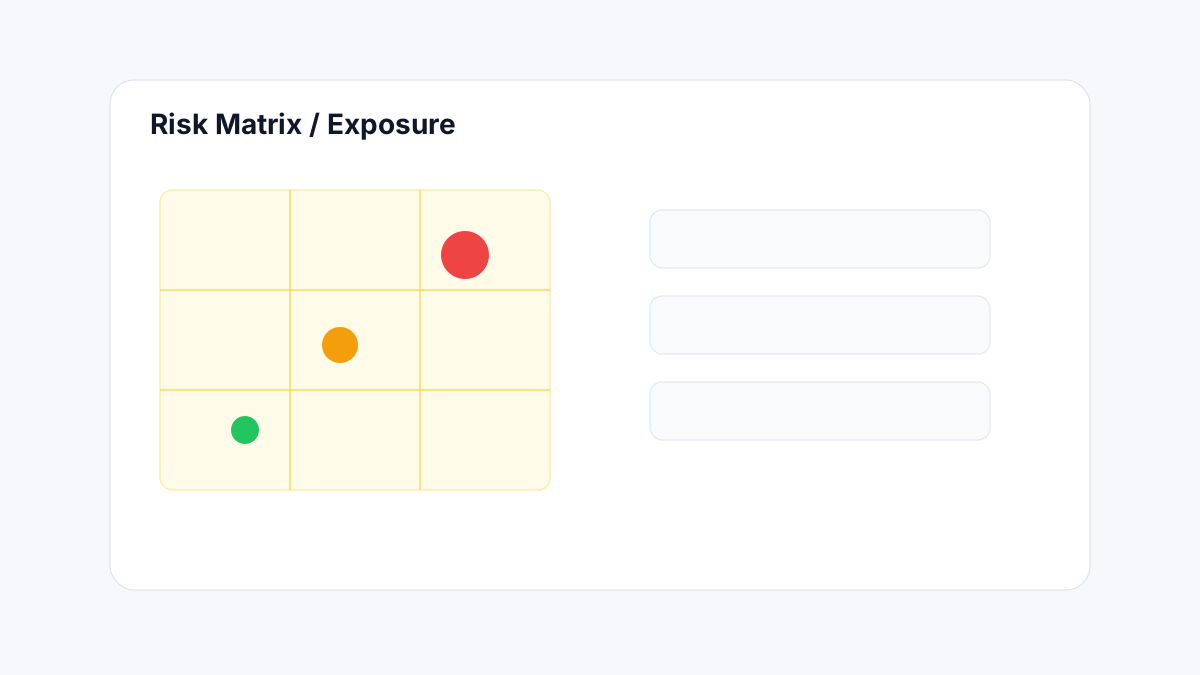
The risk matrix and exposure component renders a scatter plot with probability on one axis and impact on the other. Each risk in the bound section appears as a labelled point. Zone colouring (e.g. green–amber–red bands) provides at-a-glance heat mapping, and an optional exposure ranking lists the top risks below or beside the matrix.
When to use
- Executive risk summary pages — one matrix showing pre-response and one showing post-response side-by-side.
- Sub-project or discipline roll-up reports — filter the matrix to risks owned by a specific team.
- Trend reporting — overlay current period points against prior period points to show movement.
Adding the component
- Open the report output in the Output Designer.
- Click + Insert → Risk Matrix / Exposure.
- Position and size the component on the canvas.
- Open the Data tab in the Build panel and bind a section from your blueprint.
Data binding
| Build panel setting | Description |
|---|---|
| Source section | The blueprint section containing risk rows. Must be a repeating-row section. |
| Label field | Field used to label each risk point (e.g. Risk ID or short title). |
| Probability field | Numeric or select field mapped to the Y axis. |
| Impact field | Numeric or select field mapped to the X axis. |
| Exposure field | Optional — used to size the point or drive the exposure ranking list. |
| Response context | Choose Pre-response, Post-response, or Both (renders two overlapping points per risk). |
Axis configuration
| Property | Options |
|---|---|
| Grid size | 4×4 or 5×5. A 5×5 grid is standard for projects using a 1–5 probability/impact scale. |
| Axis scale | Auto (derived from field min/max) or Fixed (custom min, max, step). |
| Axis labels | Text labels for each level on both axes (e.g. "Very Low / Low / Medium / High / Very High"). |
| Axis title | Custom title text for the X and Y axis (default: field labels). |
Zone colours
Zones divide the matrix into coloured bands. Each zone covers a rectangular region of the grid:
| Property | Description |
|---|---|
| Zone count | 3 (Low / Medium / High) or 5 (Very Low → Very High). |
| Zone boundaries | Defined as cell coordinates — e.g. cells 1–4 = green, 5–8 = amber, 9–25 = red. |
| Zone fill opacity | 10%–80% fill behind data points. |
| Zone border | Optional border between zones. |
| Legend | Show zone labels in a legend below the matrix. |
Risk point styling
| Property | Options |
|---|---|
| Point shape | Circle, square, diamond. |
| Point size | Fixed size or proportional to the Exposure field value. |
| Point colour | Single colour, or conditional on a field value (e.g. owner, status, category). |
| Point label | Show the label field on/near the point. |
| Label overlap | Auto-reposition overlapping labels, or stack with offset. |
| Threshold line | Optional horizontal or diagonal threshold line to highlight above-threshold risks. |
Pre/post response toggle
When Both is selected for Response context:
- Pre-response points render with solid fill.
- Post-response points render with an outlined style (or configurable alternate colour).
- An arrow connects each pair of points to show risk movement.
- The legend distinguishes pre and post.
Top-risk list
Enable the top-risk list to display ranked exposure items below or beside the matrix:
| Property | Description |
|---|---|
| Show top-risk list | Toggle on/off. |
| Row count | Number of risks to display (default: 5). |
| Sort by | Exposure (descending), Probability, Impact, or manual order. |
| Columns | Choose which fields to show in each row of the list. |
| Highlight threshold | Risks above a configured exposure score are shown in red text. |
Export behaviour
- PDF / Word: The matrix renders as a vector image at high resolution. Zone colours are preserved.
- Excel: The matrix is embedded as a static image. The risk rows are exported as a separate sheet.
- Large matrices (>50 risk points) may render slowly in PDF — consider filtering to the top 20–30 risks for report outputs.