Blueprint Designer
The blueprint designer is the interface where you define the complete structure of a reporting process — sections, fields, permissions, form layout, output templates, and lifecycle settings. Everything configured here flows into every edition created from the blueprint.
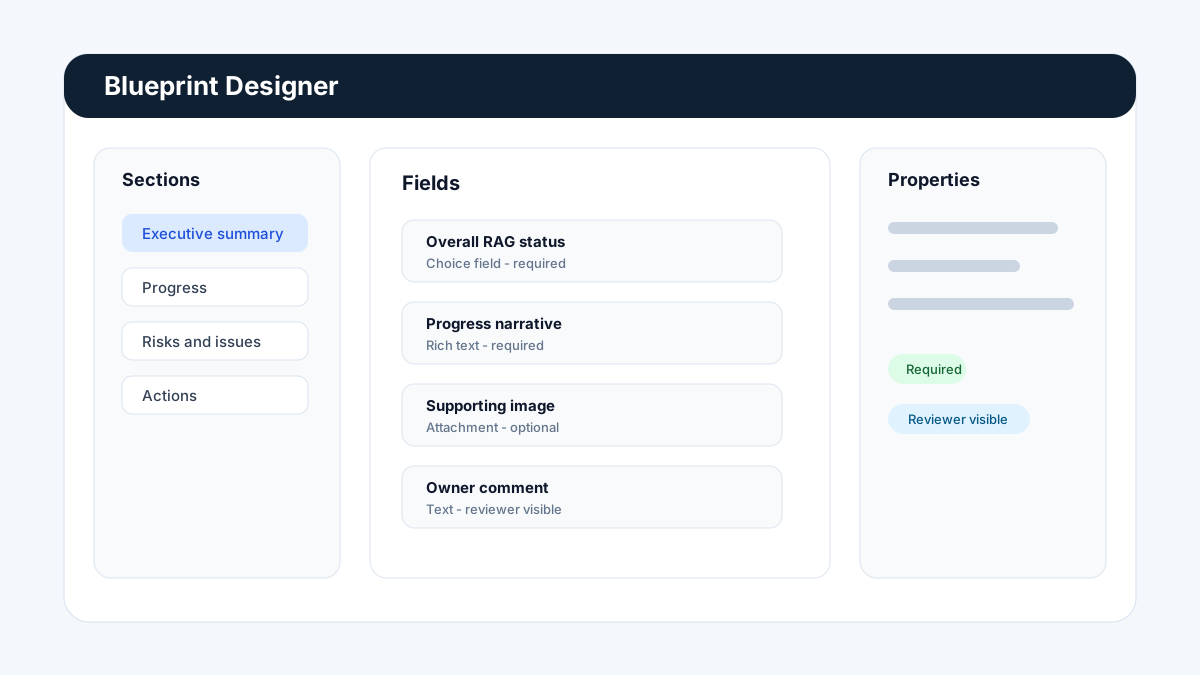
Designer areas
The blueprint designer is split into several panels and tabs:
| Area | Purpose |
|---|---|
| Blueprint properties | Name, display name, description, category, reporting frequency, icon, and version. |
| Sections panel | Add, reorder, and configure sections. Each section is a named group of fields. |
| Field list | The list of fields within the selected section. Add, reorder, and configure individual fields. |
| Field configuration panel | Detailed settings for the selected field: type, label, validation, default value, options. |
| Form Designer | Visual layout editor for arranging fields across tabs, rows, and multi-column cells. |
| Section permissions | Role-based view/edit access per section. |
| Outputs | Manage output templates linked to this blueprint. |
| Lifecycle | Blueprint version, status, and publish controls. |
Blueprint properties panel
Accessible via the Settings button at the top of the designer.
| Property | Description |
|---|---|
| Name | Internal identifier used in the blueprint library and edition creation lists. |
| Display name | Shown on report covers, the edition header, and in the report viewer. |
| Description | Short summary shown in the blueprint library selection card. |
| Category | Organisational grouping — create categories to match your report taxonomy. |
| Reporting frequency | Controls the default edition period length: daily / weekly / biweekly / monthly / quarterly / annual / ad-hoc. |
| Icon | Emoji or icon identifier used in the library card. |
| Colour | Accent colour used in the library card and edition header. |
| Version | Current version label (e.g. 1.0, 2.1). Incrementing the version signals a structural change to all editions. |
| Owner | The user or team responsible for maintaining this blueprint. |
| Tags | Free-form labels for search and filtering in the library. |
Sections panel
Section types
| Type | Description |
|---|---|
| Single entry | One set of field values per edition. Used for summaries, narratives, status updates, cover data, commercial totals. |
| Repeating rows | Multiple rows per edition. Used for risk registers, action logs, lookahead records, quantity sheets, activity progress. |
Section settings
| Setting | Description |
|---|---|
| Section name | Displayed above the section in form mode and in the section navigation panel. |
| Description | Guidance text shown to contributors above the section inputs. |
| Required | Whether the section must be marked complete before the edition can be submitted. |
| Collapse by default | Whether the section starts collapsed in the edition form. |
| Section order | Drag to reorder sections. Order is reflected in the edition form navigation and in default output component bindings. |
Field list and field configuration
Adding a field
- In the Sections panel, select the section you want to add a field to.
- Click + Add Field.
- In the field configuration panel, set the field type, name, and display label.
- Configure type-specific options (see Blueprint Field Types).
- Set Required if the field must be filled before the edition section can be marked complete.
- Click Save field.
Field reordering
Drag fields within the field list to change their order. Field order is reflected in the default form layout and in the column order of grid-mode sections.
Field grouping
Fields can be grouped under a subheading within a section — this creates a visual divider in the form without creating a new section. Useful for long sections with distinct sub-areas (e.g. Baseline vs Forecast dates within a Schedule Status section).
Common field configuration properties
| Property | Applies to | Description |
|---|---|---|
| Field name | All | Unique identifier used in output bindings and expression references. |
| Display label | All | Label shown to contributors in form/grid mode. |
| Required | All | Blocks section completion if empty. |
| Placeholder | Text, Textarea, Number, Date | Hint text shown in the empty input. |
| Default value | All | Pre-filled value when a new edition is created. |
| Read-only | All | Prevents contributor editing — used for auto-populated or lookup fields. |
| Min / Max | Number, Currency, Percent | Validation range. |
| Character limit | Text, Textarea | Max length enforcement. |
| Options list | Select, Multi-select | The list of allowed values. |
| Expression | Computed | Formula that calculates the field value from other fields. |
| Conditional visibility | All | Show/hide this field based on the value of another field. |
Form Designer tab
The Form Designer lets you arrange fields in a structured tab-and-column layout for the edition form, instead of the default single-column scroll.
To open: click the Form Designer button in the designer toolbar.
Key capabilities:
- Tabs — split the form into named topics (e.g. Status, Schedule, Commercial, Risks).
- 12-column grid — place fields in cells spanning 1–12 columns per row.
- Display modes — set each section block to Form, Table, or Spreadsheet mode.
- Column layout — configure 1, 2, 3, or 4 columns within a form-mode block.
- Collapsed blocks — sections that start accordion-collapsed.
- Field visibility overrides — show only specific fields in a block.
See Blueprint Form Designer for the full reference.
Section permissions
Section permissions control which roles can view and edit each section in the edition form.
To configure:
- Select a section in the sections panel.
- Click Permissions.
- Set access per role:
| Permission level | Description |
|---|---|
| Edit | Role can view and enter/change field values in this section. |
| View | Role can see the section and its values but cannot edit. |
| Hidden | Role cannot see this section at all. |
If permissions are not set on a section, it inherits from the project-level role defaults (Contributor = Edit; Reviewer = View; Observer = Hidden by default).
See Section Permissions for the full configuration guide.
Outputs tab
The Outputs tab lists all output templates linked to this blueprint. Each output template is an independent layout designed in the Output Designer.
| Action | Description |
|---|---|
| + New Output | Opens a new blank canvas in the Output Designer. |
| Edit | Opens the existing template in the Output Designer. |
| Duplicate | Creates a copy of the template (useful for PDF vs Excel variants). |
| Set as default | Marks this template as the default when generating output from an edition. |
| Delete | Removes the template. Editions that have already generated output using this template retain their generated copies. |
Blueprint lifecycle
Versions
Versions track structural changes to the blueprint. Increment the version when adding or removing sections or fields that affect existing editions.
| Version action | Description |
|---|---|
| Minor version | Increment for non-breaking changes: adding optional fields, relabelling, adding options to a Select. |
| Major version | Increment for breaking changes: removing fields, renaming fields used in outputs, changing section types. |
Blueprint statuses
| Status | Description |
|---|---|
| Draft | Blueprint is being designed. Cannot be used to create editions. |
| Published | Blueprint is live. Contributors can create editions from it. |
| Archived | Blueprint is no longer active. Existing editions are preserved; no new editions can be created. |
Publishing
Click Publish blueprint to move from Draft to Published. A confirmation dialog lists any validation warnings (e.g. sections with no fields, required fields with no default that may surprise contributors).
Unpublishing
Click Unpublish to return a Published blueprint to Draft for editing. This does not affect existing editions — they remain intact and can still be accessed.
Contributor assignment panel
The Contributor Assignment panel defines which users or teams are responsible for completing each section by default. These assignments are pre-filled in the edition creation form and can be overridden per-edition.
| Assignment type | Description |
|---|---|
| Section contributor | User or team responsible for filling in a specific section. |
| Section reviewer | User or team responsible for reviewing and approving a specific section. |
| Edition owner | The user who manages the edition overall (typically the report author). |
Best practices
- Design sections first, fields second. Get the section structure right before adding any fields — it is harder to restructure sections once data exists.
- Test before publishing. Create a draft edition and fill it in as a contributor. Fix anything that is confusing or missing before publishing.
- Version on structural changes. Increment the version number whenever you add, remove, or rename fields that are used in existing output templates.
- Use meaningful field names. Field names are used as binding references in output templates — choose names that will make sense to the output designer (e.g.
schedule_ragnotfield_12). - Set defaults for common values. Pre-filling Status = "Not Started" and RAG = "Amber" saves contributors a click on every edition.