Blueprint Library
The blueprint library is the central catalogue of all reporting blueprints in your workspace. Report owners, admins, and contributors use it to find, create, duplicate, and manage the report structures used each reporting cycle.
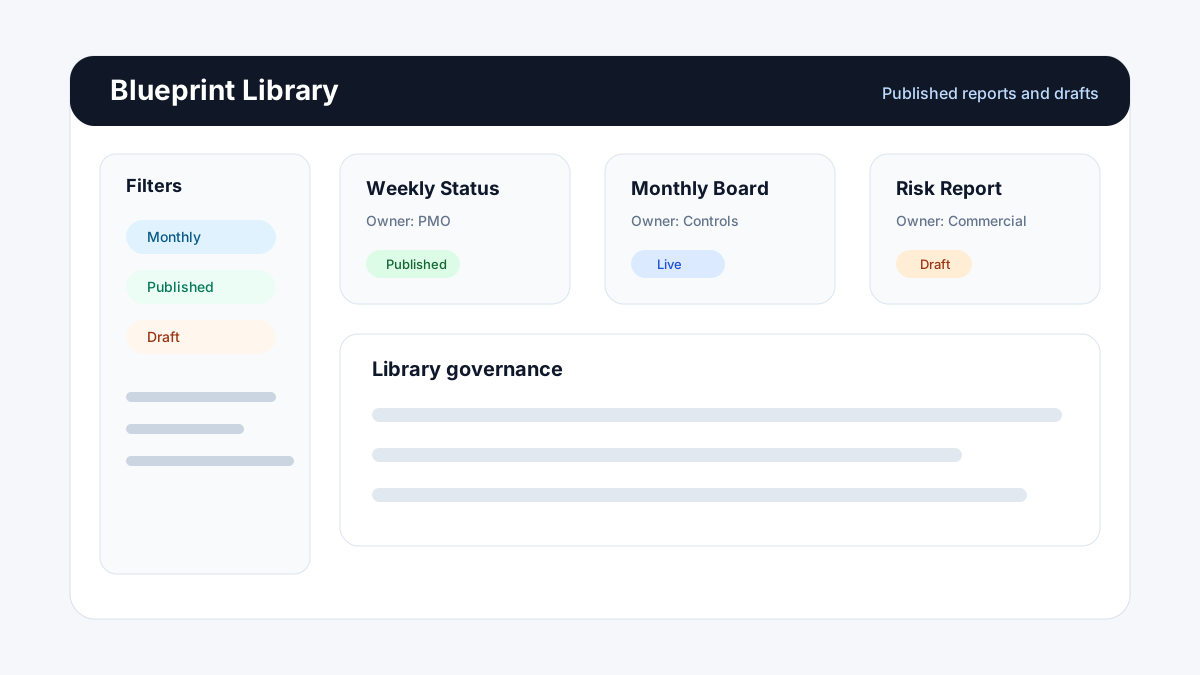
What the library shows
| Column / Area | Purpose |
|---|---|
| Blueprint name | The display name set during blueprint creation. |
| Description | Short description of the report's purpose and audience. |
| Owner | The user responsible for the blueprint. |
| Status | Draft, Published, or Archived. |
| Frequency | Reporting cadence (weekly, monthly, quarterly, etc.). |
| Last activity | Date of the most recent edition, output, or blueprint change. |
| Actions | Open, Duplicate, Archive, or Delete (permission-dependent). |
Finding blueprints
Use the library search and filter controls:
| Filter | Description |
|---|---|
| Search | Full-text search on blueprint name and description. |
| Status | Filter to Draft only, Published only, or Archived. |
| Owner | Filter to blueprints owned by a specific user. |
| Project / Scope | Filter to blueprints associated with a specific project or portfolio. |
| Report type | Filter by category tag (progress, financial, safety, quality, etc.). |
| Cadence | Filter by reporting frequency. |
Creating a blueprint
- Click + New Blueprint.
- Choose a starting point:
- Blank blueprint — start from scratch.
- From template — select a starter blueprint from the built-in template library.
- Duplicate an existing blueprint — copy a blueprint as a starting point.
- Enter a name, description, and owner.
- Click Create.
The new blueprint opens directly in the Blueprint Designer.
Duplicating a blueprint
Duplication copies the full blueprint structure — all sections, fields, form layouts, permissions, and output templates — as a new Draft blueprint. Use duplication when:
- The same report structure is needed for a different project.
- You want to test changes to a live blueprint without affecting the active reporting cycle.
- A new report type is very similar to an existing one.
- Find the blueprint in the library.
- Click the ... menu on the blueprint card → Duplicate.
- Enter a new name and owner.
- Click Duplicate.
The duplicate is created as a Draft. Update the new blueprint before publishing.
Publishing a blueprint
Publishing makes a blueprint available to contributors for new editions. Unpublished (Draft) blueprints are only visible to Admins and the blueprint owner.
- Open the blueprint in the Blueprint Designer.
- Review all sections, fields, and form layouts.
- Click Publish in the header.
- Add an optional version note.
- Confirm.
Published blueprints show the Published status badge in the library.
Archiving a blueprint
Archive a blueprint when it is no longer used for active reporting but you want to preserve its history:
- Find the blueprint in the library.
- Click ... → Archive.
- Confirm.
Archived blueprints:
- Are hidden from the default library view (use the Status filter to show Archived).
- Cannot be used to create new editions.
- Retain all existing editions, outputs, and version history.
- Can be restored to Draft status by an Admin.
Deleting a blueprint
Deleting a blueprint permanently removes it and all associated editions, outputs, and history. This action cannot be undone.
Deletion is irreversible. Archive blueprints instead unless you are certain the data is no longer needed.
Only Admins can delete blueprints. Deletion requires confirmation.
Library governance best practices
| Practice | Why |
|---|---|
| Use a naming convention | Include report type, scope, and cadence in the name (e.g. "PROJ-001 Monthly Progress"). |
| Keep descriptions up to date | A good description prevents duplicate blueprints being created by team members who don't recognise an existing one. |
| Assign a clear owner | Every blueprint should have a named owner who is responsible for keeping its structure current. |
| Archive instead of delete | Historical blueprints are valuable for audit, training, and retrospective reporting. |
| Limit Draft blueprints | Work-in-progress blueprints clutter the library. Use private drafts and publish promptly. |
| Review the library quarterly | Check for stale blueprints, duplicates, or abandoned drafts and resolve them. |