Report Viewer and Export
The report viewer is the final check before distribution. It renders the published output using the current or selected edition's data and provides export controls for PDF, Excel, and Word.
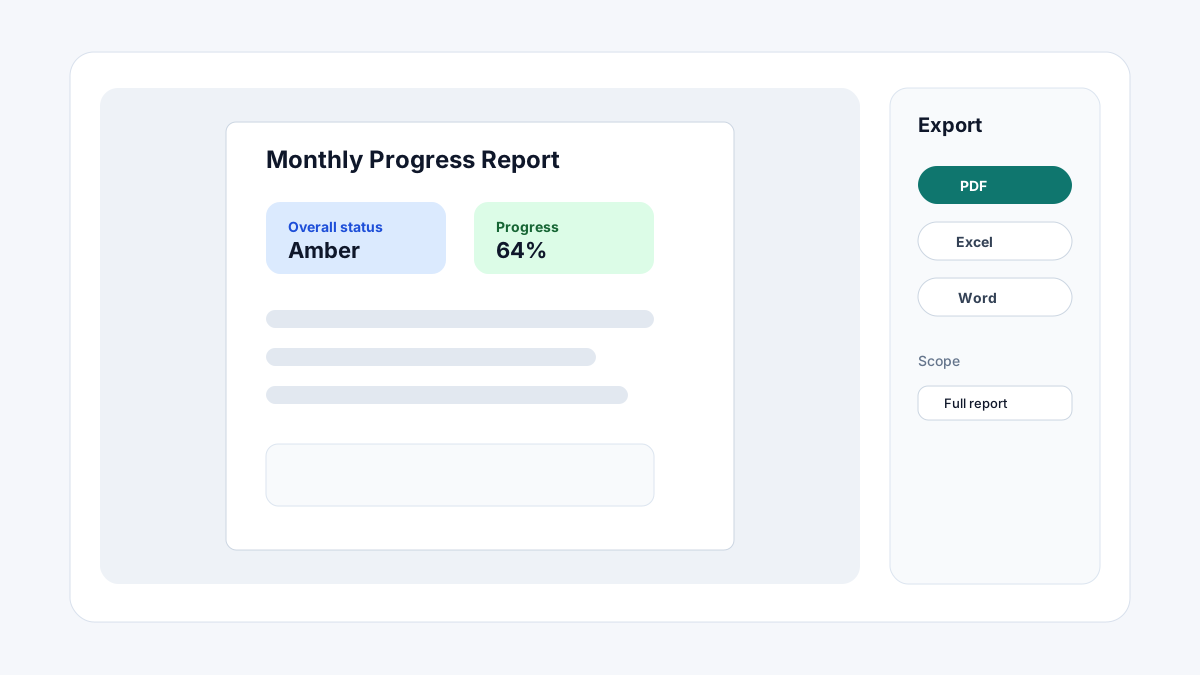
Opening the report viewer
From the Reports tab, click the View button on any generated output. The viewer opens fullscreen and loads the latest generated output for that edition.
To view an output generated from a specific edition, open the edition → click Outputs → click the output name.
Viewer toolbar
| Control | Description |
|---|---|
| Page navigation | Previous/Next arrows and a page number input for multi-page reports. |
| Zoom | Zoom in/out controls and a fit-to-width option. |
| Filter panel | Opens the slicer and filter controls if the output has interactive filters. |
| Export | Opens the export dialog. |
| Opens the browser print dialog (PDF printing via browser). | |
| Share | Copy a direct link to this output for sharing with other workspace members. |
| Full screen | Expand the viewer to fill the browser window. |
Pre-export checklist
Before exporting for formal distribution, verify:
| Check | What to look for |
|---|---|
| Report title and period | Correct project name, report type, and reporting period end date. |
| Data date | The schedule data date matches the agreed cut-off. |
| Missing values | Scan for blank required fields shown as "—" or empty cells in key tables. |
| Chart accuracy | Confirm charts use the correct measures and category groupings. |
| Page overflow | Check tables that may truncate — look for rows cut off at the page edge. |
| Image quality | Uploaded images render at acceptable resolution. |
| Review comments | All review threads are resolved (green tick in the review panel). |
| Status | Edition status is Approved before generating the final distribution export. |
Export formats
| Format | Best for |
|---|---|
| Formal distribution, read-only meeting packs, archived records. | |
| Excel | Data review, downstream analysis, audit tables, reviewer access to raw values. |
| Word | Narrative-heavy reports that require light editing by the distribution team after export. |
Exporting
- Click Export in the viewer toolbar.
- Choose a format (PDF / Excel / Word).
- Expand Options to configure format-specific settings (paper size, orientation, margins, sheets, etc.).
- Set Export scope:
- Full report — all pages.
- Current page — only the page currently in view.
- Page range — specify a start and end page.
- Section — export only a named section of the report (if sections are configured).
- Click Download.
The file is generated and downloaded immediately. Large reports (many pages, high-resolution charts) may take 10–30 seconds.
Export scope guidance
| Use case | Recommended scope |
|---|---|
| Formal submission to client or stakeholder | Full report |
| Supporting appendix only | Page range or Section |
| Internal data review | Excel, Full report |
| Cover page + executive summary only | Page range (page 1 to X) |
| Single component or table for a separate document | Page scope or Excel (data only) |
Generating a new output
If the edition data has changed since the last output was generated (e.g. a field was updated after reviewer feedback), regenerate before exporting:
- Open the edition → Outputs tab.
- Click Generate beside the output template.
- Wait for generation to complete (a spinner shows progress).
- Click View on the newly generated output.
- Export.
Output history
The Outputs tab on an edition shows all previously generated outputs with:
- Generation date and time.
- The blueprint output template version used.
- The user who triggered the generation.
- A Download link to the previously generated file.
Output files are retained indefinitely unless manually deleted by an Admin.
Sharing outputs
Click Share in the viewer toolbar to get a direct URL:
- The URL links to the report viewer for this specific output.
- Recipients must be workspace members with at least Observer access to view the report.
- For external stakeholders without a workspace account, export to PDF and share the file directly.