Review Comments and History
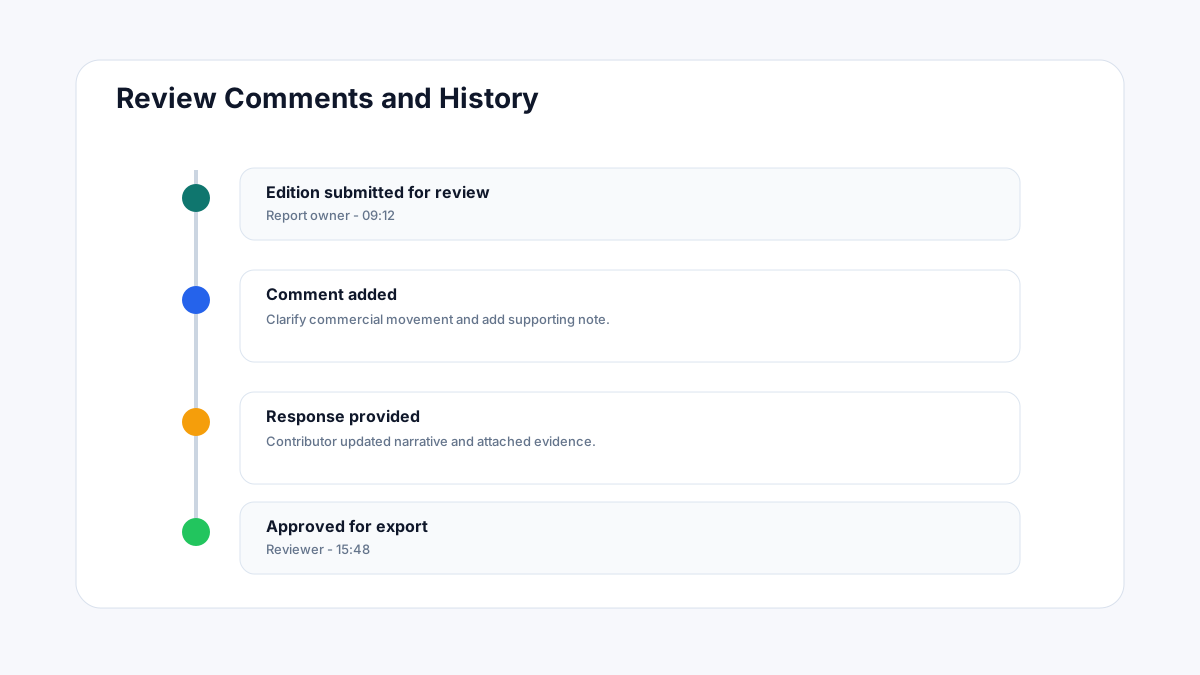
Review comments keep the revision dialogue connected to the edition data. Instead of chasing changes over email, reviewers annotate specific fields and rows, contributors respond and update in place, and the complete thread becomes part of the audit trail.
Comment types
Report Forge supports three levels of review comment:
| Comment level | Where it appears | Use it for |
|---|---|---|
| Field-level | Badge beside a specific field in form mode | Commenting on a single field value — wrong RAG, missing date, unclear text. |
| Row-level | Badge on a grid row number | Commenting on a row in a repeating-row section — incomplete risk record, missing mitigation. |
| Section-level | Banner at the top of a section | Commenting on the entire section — general incompleteness, wrong data date, structural problem. |
| Edition-level | Review panel header | Commenting on the edition overall — e.g. "wrong reporting period" or "missing sections". |
Adding a comment (reviewer)
In form mode:
- Click the Comment icon (speech bubble) beside any field or at the top of a section.
- Type your comment in the text box.
- Optionally tag a specific contributor using
@username. - Click Post comment.
In grid mode:
- Right-click a cell or row number.
- Select Add comment.
- Type your comment and click Post.
From the Review panel:
- Open the edition → click Review in the header toolbar.
- Click + Add comment to add an edition-level comment.
- Click any existing comment in the list to open the thread.
Comment states
| State | Description |
|---|---|
| Open | Comment posted — no response yet. |
| Replied | Contributor has replied. Thread is active. |
| Resolved | Comment has been marked resolved — either by the reviewer or the contributor. |
| Reopened | A resolved comment was reopened after review. |
Responding to comments (contributor)
- Open the edition — a Review comments badge in the header shows the count of open items.
- Click the badge to open the Review panel with all open comments listed.
- Click any comment to jump to the affected field or row.
- Update the field value.
- Reply to the comment thread to explain the change.
- Mark the comment Resolved once you have addressed it.
- When all comments are resolved, click Resubmit to send the edition back for re-review.
Requesting changes (reviewer)
When a reviewer wants to block approval until specific issues are fixed:
- Open the edition in review.
- Add field-level or section-level comments on the items to fix.
- Click Request changes in the Review panel.
- The edition status changes to Changes requested.
- The contributor receives a notification and can see all open comments in one panel.
Approving the edition
When all issues are resolved and the edition is ready:
- Reviewer opens the Review panel.
- Confirms all open comments are resolved.
- Clicks Approve.
- Edition status changes to Approved — ready for output generation.
Role-based visibility
| Role | Can add comments | Can resolve comments | Can request changes | Can approve |
|---|---|---|---|---|
| Admin | ✓ | ✓ | ✓ | ✓ |
| Reviewer | ✓ | ✓ | ✓ | ✓ |
| Contributor | ✓ (on own sections) | ✓ (own comments) | — | — |
| Observer | — | — | — | — |
Observers can view the review panel and comment history but cannot post comments or take review actions.
Edition history
The History tab in the review panel records all edition activity in a timestamped audit log:
| Event type | What is recorded |
|---|---|
| Edition created | Who created it and from which blueprint. |
| Field updated | Which field changed, old value, new value, by whom. |
| Comment posted | Comment text, author, target field/row/section. |
| Comment resolved | Who resolved it and when. |
| Status changed | From/to status, triggered by whom. |
| Output generated | Which template was used and when. |
| Export | Format, options, and who triggered the export. |
History records are permanent and cannot be edited or deleted. The audit log is available to all roles with at least View access on the edition.
Filtering comments in the review panel
In the Review panel, use the filter controls to focus on:
- Open only — hide resolved comments.
- My comments — show only comments you posted.
- By section — filter to a specific section.
- Needs my action — comments where you are tagged or where the most recent reply was from someone else.
Comment best practices
- Be specific. "RAG should be Red, not Amber — see 3-week delay in MTA" is more actionable than "check this".
- Tag the right person. Use
@usernamewhen the change requires a specific contributor, not the general assignee. - Resolve only when fully addressed. Don't resolve a comment and leave the underlying issue unchanged — the history trail is permanent.
- Use edition-level comments for policy issues. If the reporting period is wrong or a whole section is missing, post at edition level, not on individual fields.
- Keep threads focused. If a comment expands into a wider discussion about the report design, take it offline and record the decision in an edition-level comment.