Edition Form Mode
Form mode presents each section of the blueprint as a structured input form. Use it for narrative sections, single-entry status fields, RAG indicators, attachments, and any section where contributors fill in one cohesive record per reporting cycle.
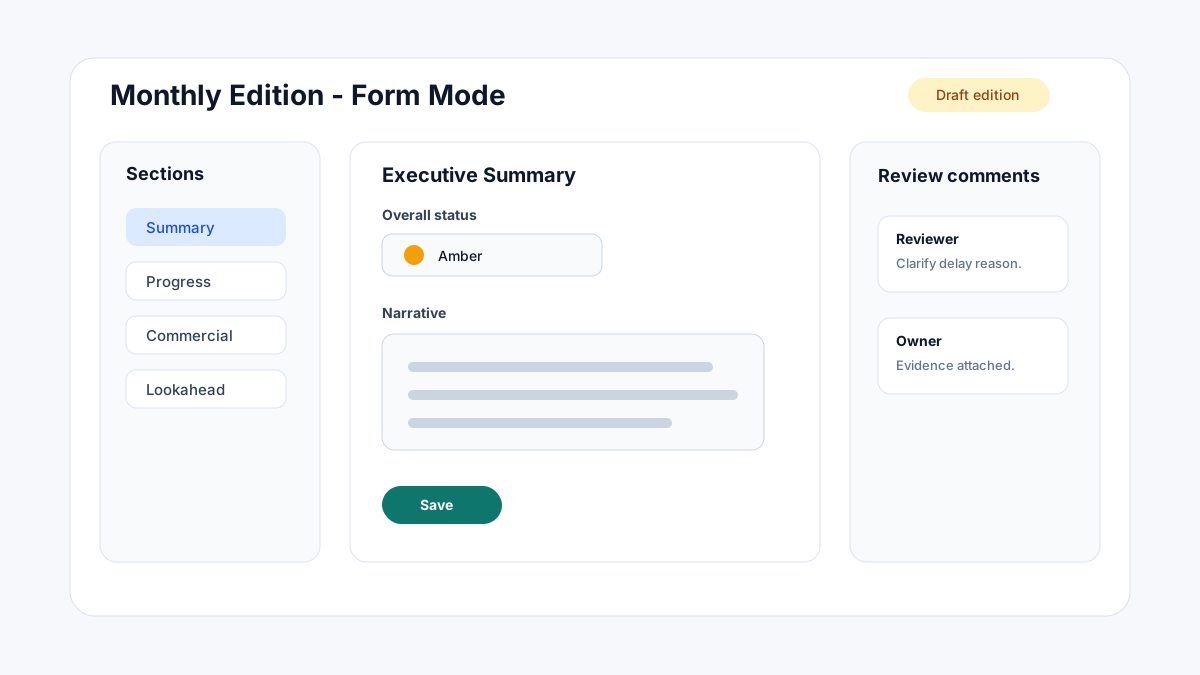
When to use form mode
| Situation | Why form mode helps |
|---|---|
| Executive summary / narrative | Rich text editor provides full formatting. |
| Single-record status fields | Focused layout shows all relevant fields together. |
| RAG and trend indicators | Colour chip pickers are optimised for quick status entry. |
| Sections with attachments or images | File and image fields sit next to their context fields. |
| Sections with complex validation | Each field label and validation message is visible at once. |
| Sections configured with a multi-column Form Designer layout | The tab-and-column layout defined in the blueprint is rendered in form mode. |
For multi-row sections (risk registers, action logs, lookahead records), use Edition Grid Mode instead.
Opening form mode
- Open an edition.
- Navigate to a section using the section navigation panel on the left.
- The section opens in its default display mode. To toggle to form mode, click the Form button at the top-right of the section panel.
If the blueprint has a Form Designer layout configured, form mode will show the tab-and-column layout defined by the blueprint author.
The section navigation panel
The left-side panel shows all sections with a completion indicator:
| Indicator | Meaning |
|---|---|
| Grey circle | Not started — no required fields have been filled. |
| Orange circle | In progress — some required fields are filled but not all. |
| Green tick | Complete — all required fields are filled. |
Click any section in the panel to jump to it. The panel stays visible while you scroll through the section.
Field-by-field guide
Text and Textarea
- Text: Single-line input. Required field is blocked if left empty.
- Textarea: Multi-line input. Resizable by dragging the bottom edge.
Both support copy-paste from any source. Character limits display as a counter below the field when a limit is configured.
Rich text
The rich text editor is a full WYSIWYG toolbar:
| Toolbar option | Description |
|---|---|
| Headings (H1–H4) | Structural headings within the narrative. |
| Paragraph | Default body text style. |
| Bold / Italic / Underline / Strikethrough | Inline formatting. |
| Ordered list / Unordered list | Numbered or bulleted lists. |
| Blockquote | Indented callout for cited text or key points. |
| Horizontal rule | Visual divider between content blocks. |
| Inline image | Paste or upload an image directly into the body of the text. |
| Table | Insert a data table within the rich text field. |
| Hyperlink | Link text to a URL. |
| Paste from Word | Preserves most formatting from Microsoft Word documents. |
For executive summaries, use Heading 2 for each sub-topic (Schedule, Cost, Safety), body text for the narrative, and a 2×2 status table for RAG summaries.
Number, Currency, and Percent
- Displays the configured unit suffix or currency symbol.
- Validates min/max constraints on blur.
- Percent fields show a
%suffix and accept values between 0 and 100 (stored internally as a decimal fraction 0–1).
Date and Datetime
- Calendar picker opens on focus.
- Type the date in the configured format (DD/MM/YYYY by default) for faster entry.
- Datetime fields show a combined calendar and time selector.
Select
- Dropdown opens on click.
- Type to filter the option list.
- If "Allow other" is enabled, type a custom value and press Enter to add it.
Multi-select
- Click options to toggle them on/off.
- Selected values shown as chips below the selector.
- Remove a chip by clicking the × on it.
Toggle
- Click the switch to toggle between on and off.
- The configured on/off labels are shown beside the switch.
RAG
- Three coloured buttons: Red, Amber, Green.
- Click a button to select the status — the selected button is highlighted.
- If a "Not set" state is configured, a grey button is shown as the default.
- Custom labels (e.g. "Critical / At Risk / On Track") are shown if configured in the blueprint.
Rating
- Click stars to set the rating.
- Click the current rating again to clear it (reset to unset).
- Half-star ratings are available if enabled in the blueprint.
Image
- Click the image field or drag and drop.
- Accepted formats: JPEG, PNG, GIF, WebP, SVG.
- After upload, a thumbnail preview appears in the field.
- Click the thumbnail to replace or remove the image.
File
- Click Attach file or drag and drop.
- Accepted file types depend on blueprint configuration (default: all types).
- Uploaded files appear in a list with filename, size, and a remove button.
- Files are linked to the edition record and accessible to all reviewers and report readers.
URL and Email
- Validated on blur — invalid format shows an inline error.
- URL requires
http://orhttps://prefix.
Computed
- Read-only field. Value is calculated automatically from other fields in the section.
- Shows the current calculated value as you type into other fields.
- If the source fields are empty, the computed field may show 0, blank, or a placeholder depending on the expression.
Lookup
- Read-only field. Value is resolved from another blueprint's most recent edition.
- The source blueprint and field are shown in a tooltip on the field label.
- If no matching source edition is found, the field shows "No matching data".
Responding to review comments in form mode
When a reviewer has added a comment to a specific field:
- A comment icon badge appears beside the field label.
- Click the badge to expand the comment thread.
- Reply to address the reviewer's question.
- Click Resolve on a comment once the correction has been made.
Section-level comments appear in a banner at the top of the section. Edition-level comments appear in the review panel (accessible from the header toolbar).
Saving and completing
| Action | When to use |
|---|---|
| Save | At any time — preserves progress without changing status. |
| Mark section complete | After all required fields in a section are filled. Updates the section nav indicator to green. |
| Submit for review | After all required sections are complete — moves the edition to Submitted status. |
Saving is separate from marking a section complete. A section can be saved with optional fields empty. Mark complete only when the section is truly done.
Keyboard shortcuts in form mode
| Key | Action |
|---|---|
Tab | Move to the next field. |
Shift+Tab | Move to the previous field. |
Enter | Confirm a select option or date picker. |
Escape | Close a dropdown or calendar without selecting. |
Ctrl+S | Save the section. |