Edition Grid Mode
Grid mode is the data entry interface for repeating-row sections. When a section has multiple rows (a risk register, action log, lookahead list, or quantity sheet), grid mode displays the section as an inline spreadsheet with one row per record and one column per field.
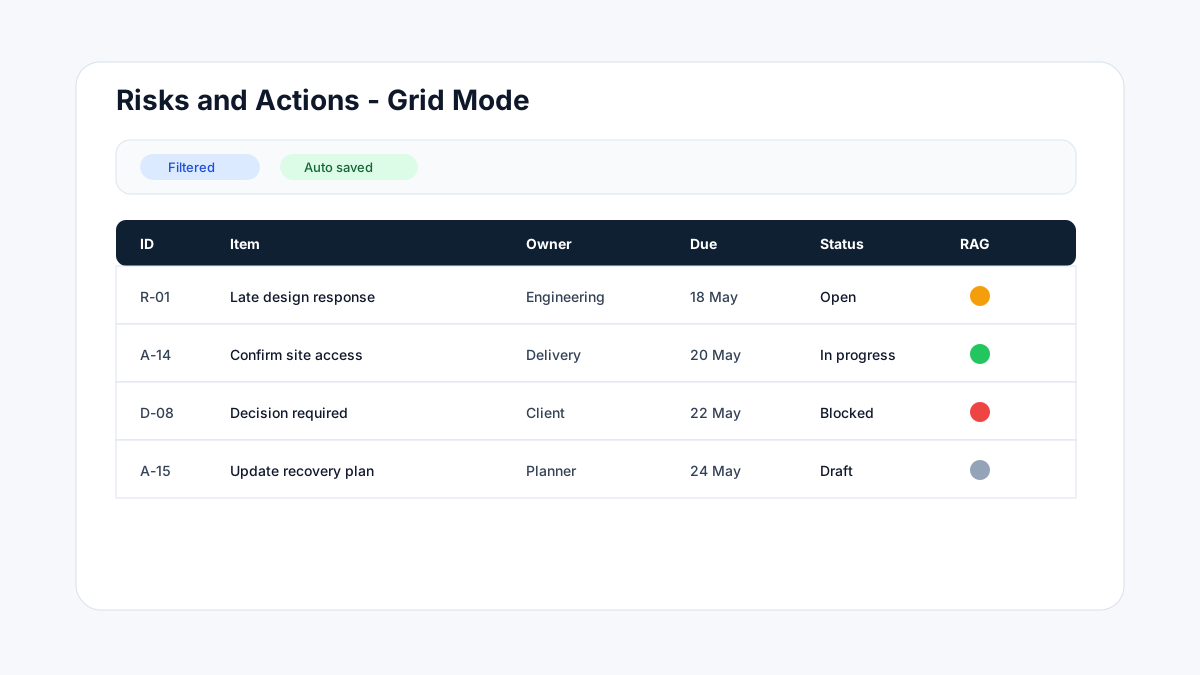
When to use grid mode
| Section type | Why grid mode helps |
|---|---|
| Risk and issue register | Each row has owner, probability, impact, response status, and due date. |
| Action log | Tracks action description, owner, target date, priority, and closure status. |
| Decision log | Records decision text, date, approver, and supporting notes. |
| Lookahead items | Upcoming work grouped by package, area, or discipline with planned dates. |
| Quantity sheet | Rows of items with planned and actual quantities, units, and variances. |
| Activity progress | One row per activity with progress percent, status, and dates. |
| Commercial breakdown | Line items with claimed, certified, and variance columns. |
For single-record sections (executive summary, overall RAG status, narrative commentary), use Edition Form Mode instead.
Grid anatomy
When you open a repeating-row section in grid mode, you see:
- Column headers — one column per field defined in the section. Required columns are marked with
*. - Data rows — each row is one record in the section.
- Row toolbar — appears on hover: duplicate, move up/down, delete.
- Add row button — at the bottom of the grid.
- Validation panel — right-side panel showing rows with issues.
- Section toolbar — top: filter, sort, import, export, column visibility toggles.
Adding rows
Manual entry
- Click + Add row at the bottom of the grid.
- A new empty row is added.
- Click a cell to start editing — the cell opens an inline editor.
- Tab through cells to fill the row from left to right.
- Press Enter to confirm an entry and move to the next row.
Duplicate a row
Right-click a row (or use the row toolbar) → Duplicate. Useful for similar records that share most values.
Drag to reorder
Click and hold the drag handle (⠿) on the left of any row to reorder. Row order is preserved in outputs.
Cell editors by field type
| Field type | Grid cell editor |
|---|---|
| Text | Inline text input — type and Tab to confirm. |
| Textarea | Inline text input — press Enter to add line breaks; Shift+Enter to confirm. |
| Rich text | Not inline — click the cell to open a full editor overlay. |
| Number / Currency / Percent | Inline numeric input — accepts keyboard entry. |
| Date / Datetime | Inline date picker — also accepts typed dates. |
| Select | Inline dropdown — type to filter, click to select. |
| Multi-select | Inline chip selector — click to toggle options. |
| Toggle | Checkbox — click to toggle. |
| RAG | Coloured chip picker — R / A / G buttons in a popover. |
| Rating | Star picker in a popover. |
| Image | Thumbnail with upload on click. |
| File | Attachment count badge — click to manage attachments. |
| URL / Email | Inline text input with format validation. |
| Computed | Read-only cell — value calculated from row data. |
| Lookup | Read-only cell — value resolved from source blueprint. |
Paste from Excel or CSV
Grid mode supports bulk row input via paste:
- Copy rows from Excel, Google Sheets, or another grid source.
- Click the first cell in the target row.
- Press
Ctrl+V(orCmd+Von Mac). - Rows are pasted in order, matching columns left-to-right.
Important: Column order in the paste source must match the column order in the grid. Use the Column visibility toggle to show/hide columns and match the expected paste order. Pasting shows a preview before confirming — review and click Accept.
Import rows from CSV
For large imports:
- Click the Import button in the section toolbar.
- Download the CSV template — the template has the correct column headers.
- Fill the template with your data.
- Upload the completed CSV.
- Review the import preview — rows with validation errors are highlighted.
- Click Import rows to confirm.
Column operations
Sort
Click any column header to sort ascending / descending. Multi-column sort: hold Shift and click additional columns.
Filter
- Click the Filter icon in the section toolbar.
- Add a filter: choose a column, operator, and value.
- Multiple filters are combined with AND logic.
- Filters are local to your view and do not affect what other contributors see.
Show / hide columns
Click Columns in the section toolbar to toggle which columns are visible. Hidden columns are still saved — they are just not shown in your current view. Contributors and reviewers can independently show/hide columns.
Resize columns
Drag the column divider in the header to resize. Resize settings persist per user per section.
Row validation
Required fields in each row are validated on save. Rows with validation errors show a red indicator on the row number. The Validation panel (right side) lists all rows with issues:
- Click a row in the validation panel to jump to it.
- Cells with errors are highlighted in red.
- Fix the issue and the error clears on the next save or field blur.
Export grid data
Click Export in the section toolbar to export the current section's rows:
| Format | Use |
|---|---|
| CSV | For further analysis in Excel or other tools. |
| Excel | Formatted workbook with column headers and autofit. |
Exported data reflects the current filter and sort settings (only visible rows are exported when a filter is active).
Grid mode vs form mode toggle
Some sections support both modes. Use the mode toggle at the top of the section to switch:
- Grid mode — best for bulk entry of multiple rows.
- Form mode — best when a single row has many fields and needs more vertical space (e.g. a detailed risk record with a rich-text mitigation field).
In form mode for a repeating-row section, you navigate one row at a time using Previous/Next controls.
Review comments in grid mode
Reviewers can add comments to individual cells or entire rows:
- A comment badge appears on the cell or row number.
- Click the badge to view and reply to the comment thread.
- Resolve comments after making the requested change.